


Access Method
Dashboard

Thank you for selecting OneSpace Central to empower your community. We at OneSpace are more than happy to assist you in case you have any troubles with your Site Management system.
This guide was made to provide a quick reference for common actions, functions, and workings that you will be using to help manage your site and all residents on the system. If this guide fails in assisting you with the website’s functionality, please do not hesitate to email us on support@one-space.co.za.
This guide will address the following:
The Access Method Dashboard
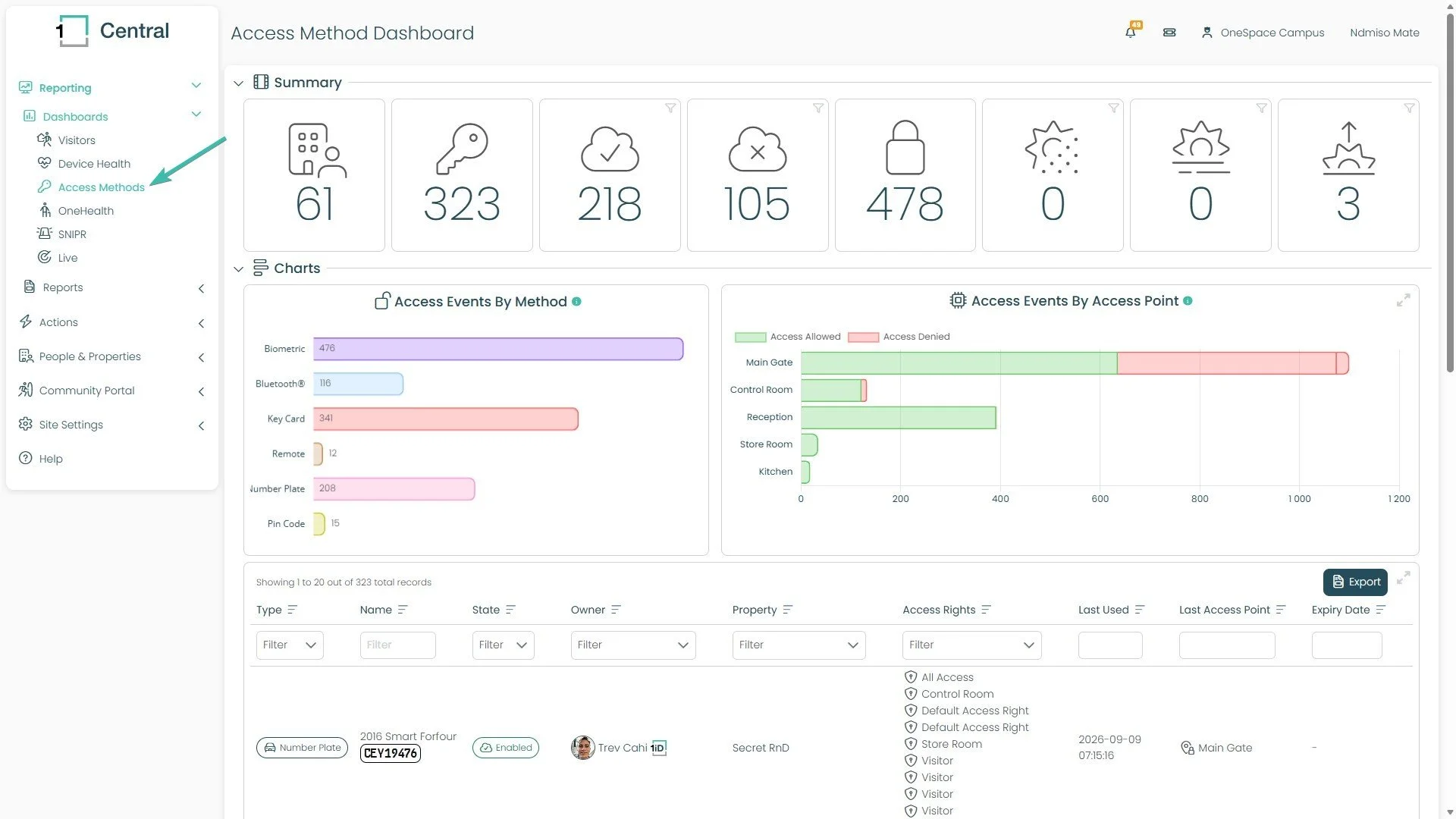
The Access Method Dashboard gives you a full overview of how people and vehicles are getting access on your site. From this one screen, a Manager can see every access method in use (key cards, biometrics, number plates, PINs, Bluetooth®, and remotes), how many are active or inactive, how much access has been denied recently, and which credentials are about to expire. It's the best place to check the overall health of access on your site without having to open each record one by one.
Summary Cards
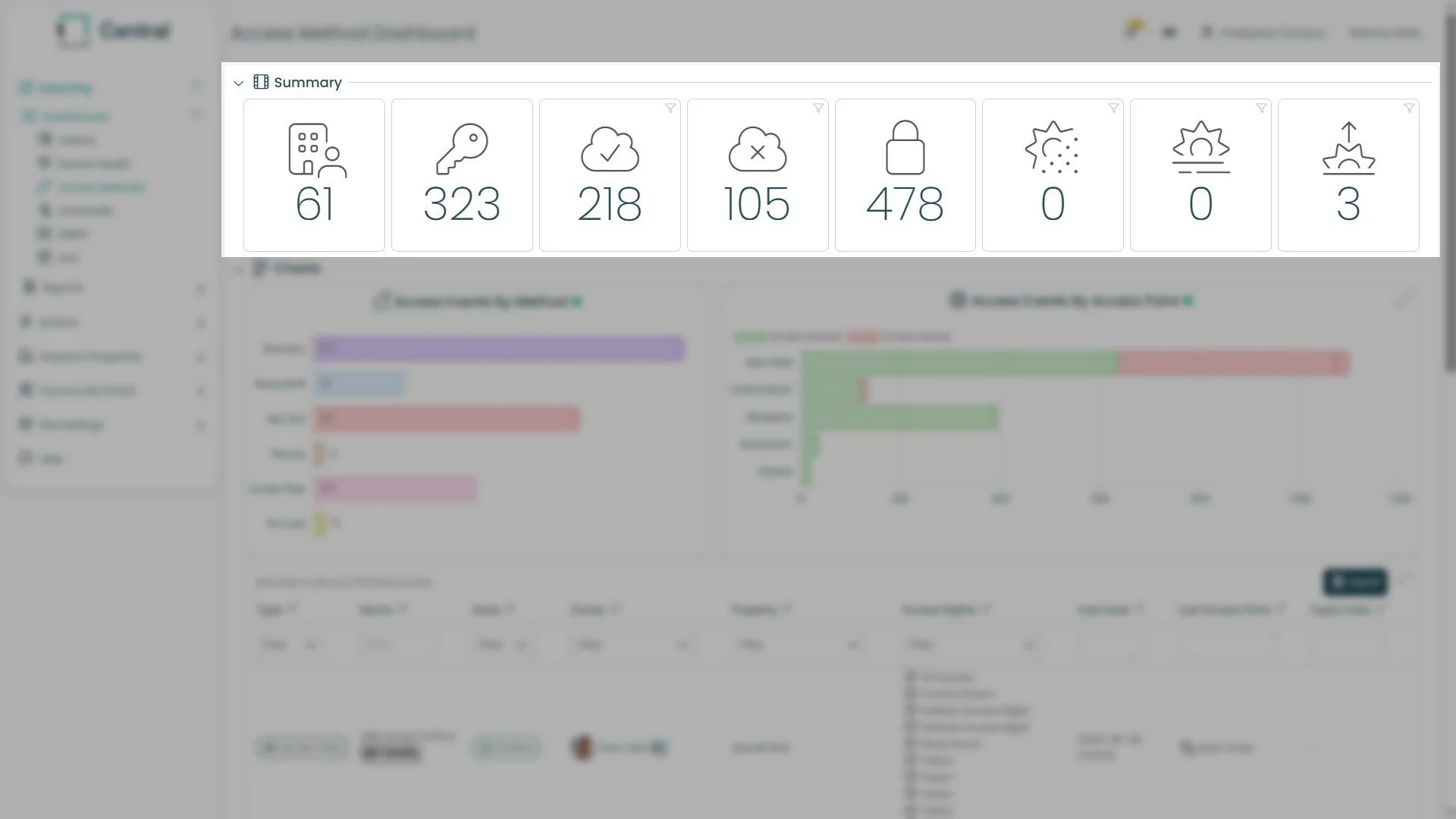
At the top of the dashboard, you'll see eight summary cards. Each one gives you a quick count, from left to right:
Total Properties: shows how many properties are on your site.
Total Access Methods: shows how many Access Methods exist on your site in total.
Enabled Access Methods: shows how many of those Access Methods are currently turned on.
Disabled Access Methods: shows how many are turned off.
Total Denied Access This Week: shows how many times access was denied over the past week.
Methods Expiring Within a Day: shows how many Access Methods will stop working in the next 24 hours.
Methods Expiring Within a Week: shows how many will stop working within the next 7 days.
Methods Expiring Within a Month: shows how many will stop working within the next 30 days.
A small filter icon sits in the corner of each card — we'll cover what that does when we get to the Filtering section, since it ties directly into the table below.
Charts
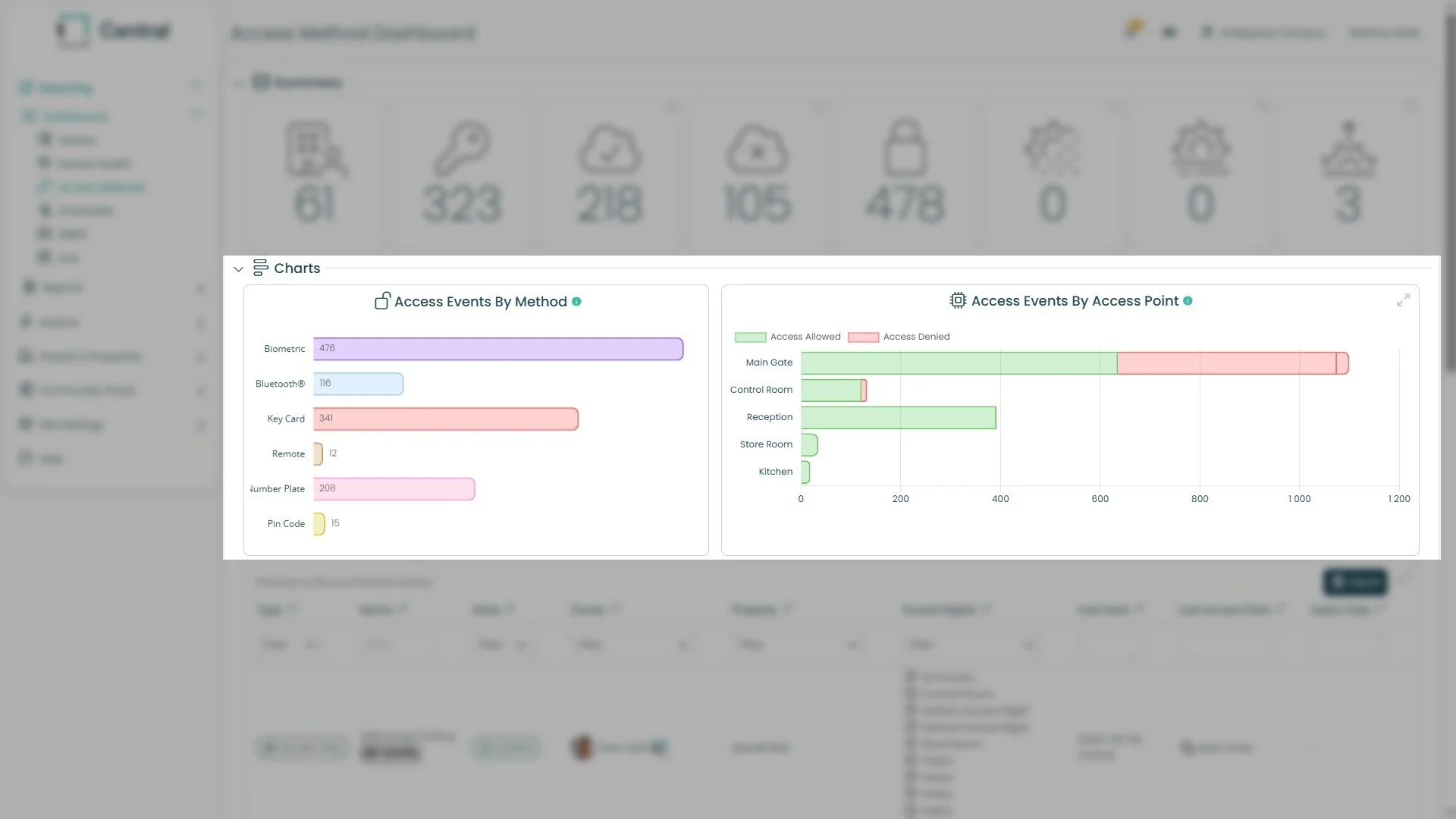
Below the summary cards, you'll find two charts that break down access activity in more detail.
Access Events By Method shows how many access events happened for each type of Access Method:
Biometric,
Bluetooth®
Key Card
Remote
Number Plate
Pin Code.
The longer the bar, the more that method was used to gain access.
Access Events By Access Point shows the same access events, but grouped by where they happened, for example Main Gate, Control Room, Reception, Store Room, and Kitchen.
Each bar is split into two colours: green for Access Allowed and red for Access Denied, so you can quickly see which access points are having the most trouble letting people in.
The Access Method Table
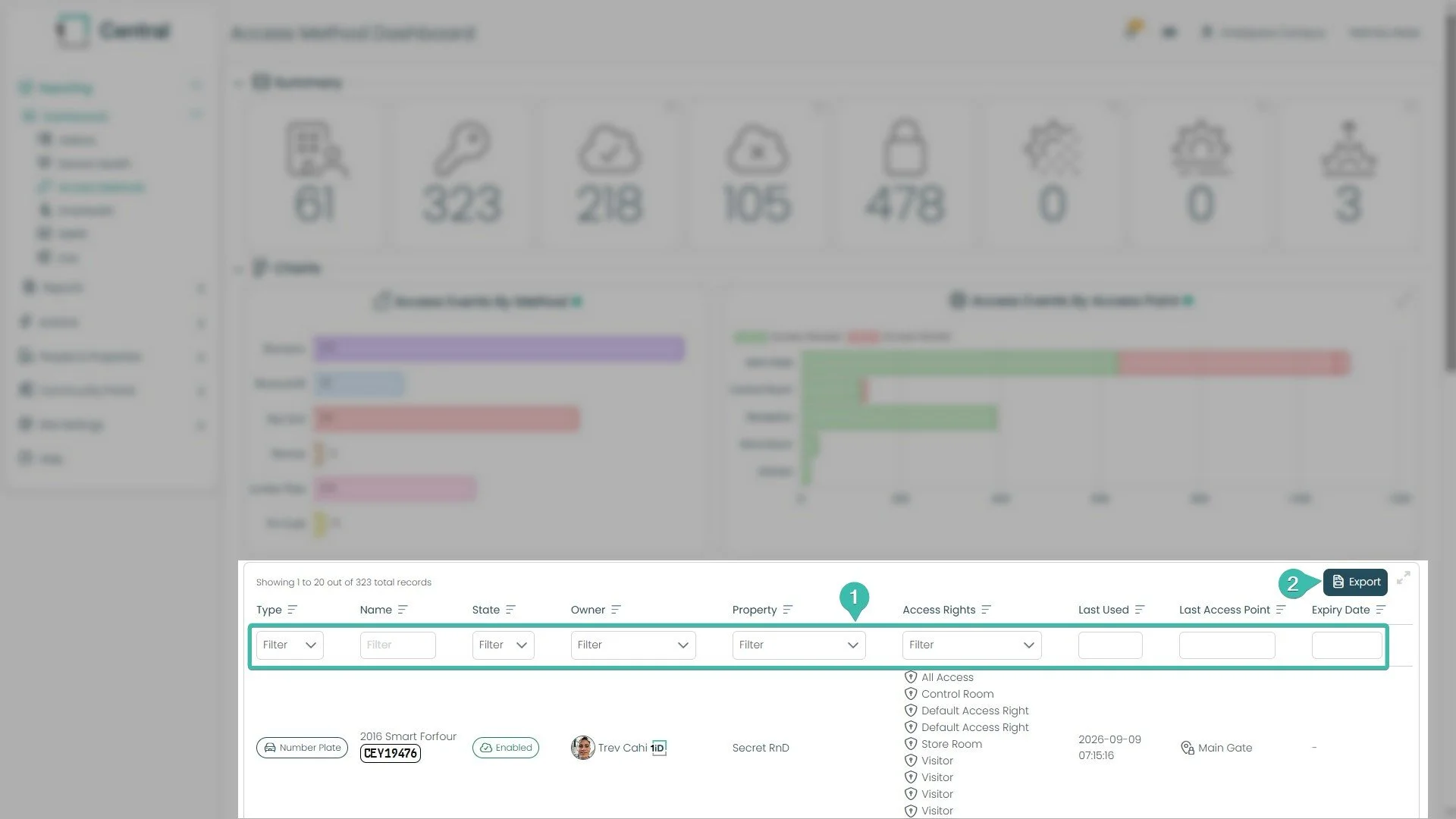
Underneath the charts is a table listing every individual Access Method on your site — for example, a specific person's key card, or a specific vehicle's number plate. Each row shows the Type, Name, State (enabled or disabled), Owner, Property, Access Rights, when it was Last Used, the Last Access Point, and its Expiry Date.
Two things to know here:
Right under each column heading is a filter box. Type or select a value in any of these to narrow the table down to exactly what you're looking for — for example, filtering by Property to see only one estate's access methods.
In the top right of the table, the Export button lets you download the current table view as a file, so you can share it or work with it outside of Central.
Filtering from the Summary Cards
Here's a shortcut worth knowing: the summary cards at the top aren't just for viewing — they're clickable filters too. Each card has a small filter icon in its corner (callout 1). Clicking it instantly filters the table below to show only the records behind that number.
In the example shown, clicking the filter icon on the "Methods Expiring Within a Month" card (the one showing 3) filters the table down to just those 3 records (callout 2). The card itself changes to show a "Filtered" tag, so you always know which filter is currently active and can easily spot it at a glance.