


New Feature
Central OneChat

Thank you for selecting OneSpace Central to empower your community. We at OneSpace are more than happy to assist you in case you have any troubles with your Site Management system.
This guide was made to provide a quick reference for common actions, functions, and workings that you will be using to help manage your WhatsApp Messages from your groups within the Central system. If this guide fails in assisting you with the OneChat Feature functionality, please do not hesitate to email us on support@one-space.co.za.
This guide will address the following:
OneChat is a feature inside Central that connects your estate's WhatsApp groups to Central, so that what's happening in your community's WhatsApp chats becomes visible, searchable, and easier to act on — without anyone having to sit inside WhatsApp itself all day.
OneChat works together with Central's Clubs and Memberships system: once a group is linked to a club (for example, a running club's WhatsApp group), Central can associate that group's members with the people who belong to that club.
How it works, in plain terms
Matching people: OneChat tries to match each WhatsApp group member to a person Central already has on file for your site — usually because they use the same cellphone number in both places. When a match is found, that member's messages are tied to their resident profile.
Grouping into conversations: instead of one long, unbroken stream of messages, OneChat automatically groups messages into "conversations" (also called threads). If messages keep arriving within 20 minutes of the previous one, they all count as the same ongoing conversation. Once 20 minutes pass with nothing new, that conversation is treated as closed, and the next message starts a fresh one.
AI review: an AI model reads each conversation and can summarise it, tag it by category (for example, Safety & Security, or Service Delivery), rate how severe or urgent it looks, and gauge the general tone of the messages. This is there purely to help you triage faster — the AI does not take any action by itself; a staff member always decides what, if anything, to do next.
Groups Tab
Groups is the master list of every WhatsApp group connected to OneChat for your site, and where each one is linked to a Central club, if any. You can also begin the process of adding your OneChat Bot to a Group from here.
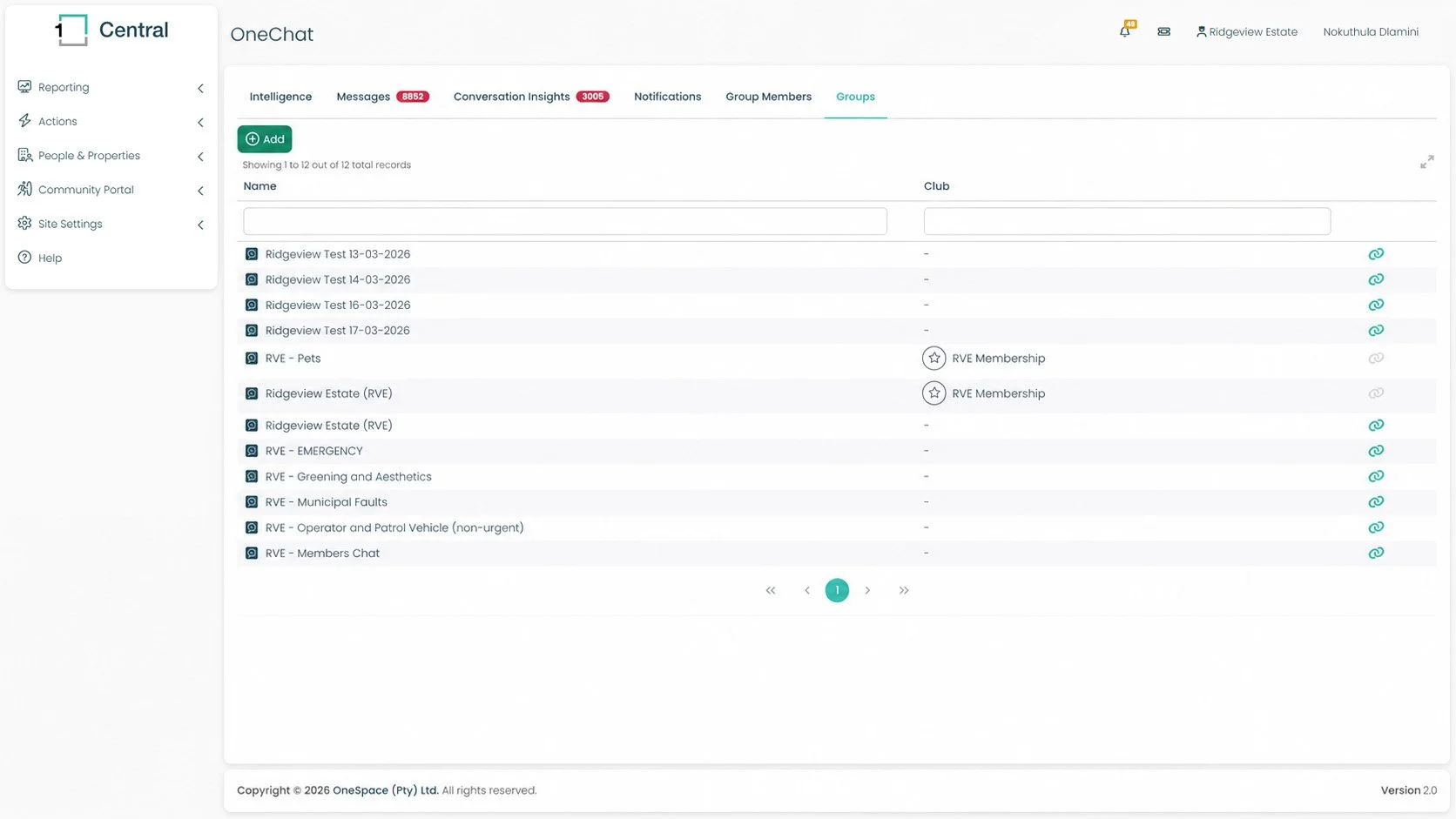
What's on this screen
An Add button, for connecting a new WhatsApp group to OneChat.
A Name column listing each connected group (for example "CHE - Pets", "CHE - Members Chat"), searchable via the box underneath.
A Club column, showing the Central club a group has been linked to, marked with a star icon — most groups in the example shown aren't linked to a club and show a dash.
A chain-link icon on the right of each row, which appears to indicate whether that group is actively linked/connected (shown in colour) versus not (shown greyed out).
Adding your OneChat Bot to a Group
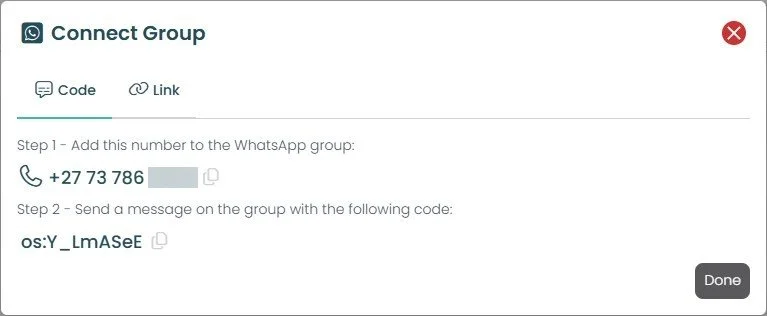
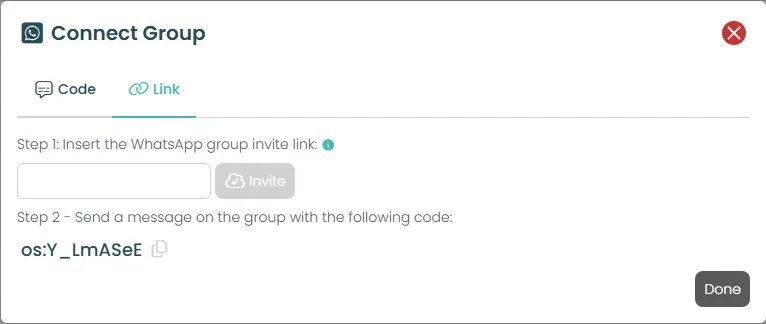
OneSpace gives your estate a dedicated WhatsApp number, referred to as the OneChat "bot". Your team adds this number into a WhatsApp group using a join code or invite link generated from Central. Once it's in the group, OneChat can read every message sent there.
Selecting the Green +Add Group button on this page will open up a new window where you will see the Phone number details of your OneChat Bot. Follow the onscreen instructions. You can link your OneChat bot either by code or by link.
OneChat Bot Link to WhatsApp Group By Code
OneChat Bot Link to WhatsApp Group By Link
Intelligence is the dashboard you land on when you open OneChat. Rather than making you read every message, it rolls up everything OneChat has seen across all your connected groups into one screen — so you can tell at a glance whether anything needs your attention today.
In the top-right corner you can change the time window the whole dashboard is based on: 24 hours, 7 days, 30 days, 90 days, All Time, or a Custom range. Everything described below updates to match whichever window is selected.
Intelligence tab
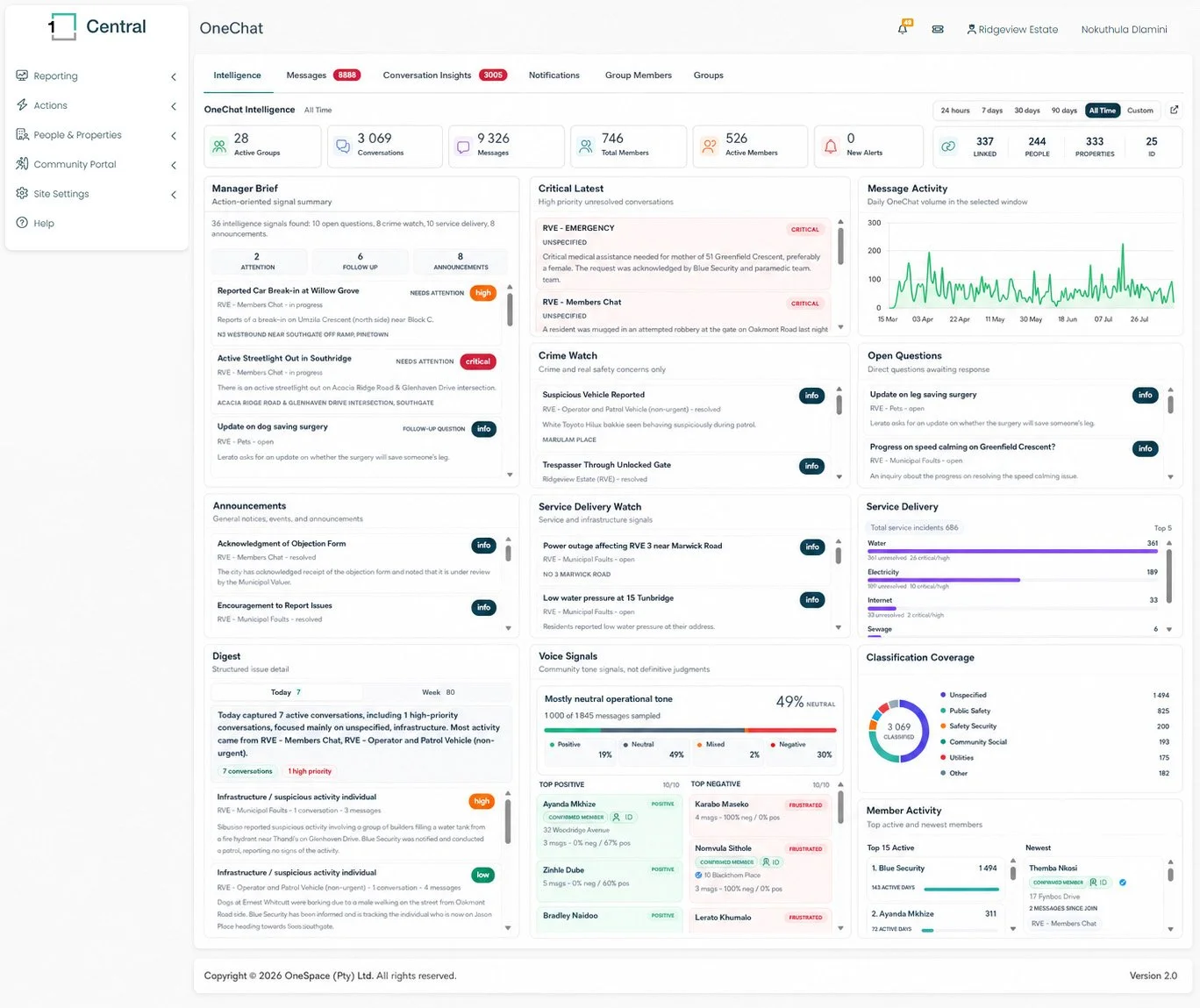
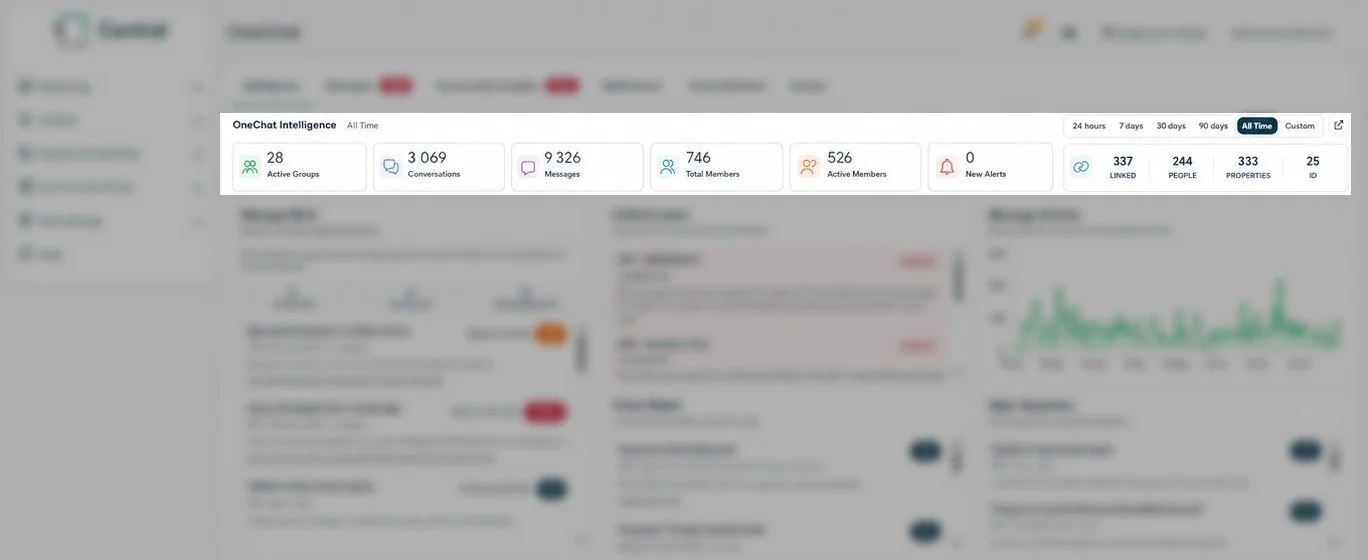
The summary numbers
Just under the tabs is a row of headline numbers for the selected time window:
Active Groups: how many WhatsApp groups are currently connected to OneChat for this estate.
Conversations: how many separate conversations (threads) OneChat has grouped the messages into, using the 20-minute rule described above.
Messages: the total number of individual WhatsApp messages OneChat has picked up.
Total Members: everyone who is a member of at least one connected group, whether or not OneChat has matched them to a resident.
Active Members: members who have actually taken part in a conversation in the selected window, rather than just belonging to the group silently.
New Alerts: notifications waiting for a manager to look at (this links through to the Notifications tab).
Linked, People, Properties, 1iD — a second, smaller cluster of numbers that appear to describe how many group members have been successfully matched to a real Central person and/or property record.
The 12 Panels
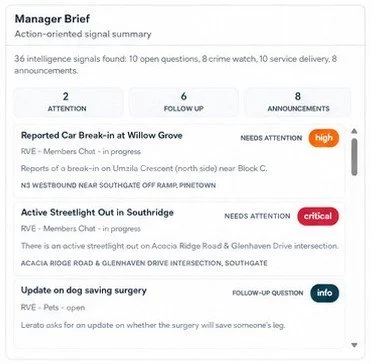
The first thing to read each day. It opens with a one-line count of how many "intelligence signals" the AI found in the window (for example, "36 intelligence signals found: 10 open questions, 8 crime watch, 10 service delivery, 8 announcements"), followed by three quick totals: Attention, Follow Up, and Announcements. Underneath is a scrollable list of the individual signals themselves — each one shows a short title, a status tag such as NEEDS ATTENTION or FOLLOW-UP QUESTION, a priority colour (for example high or critical), which group and status it came from, a one-line AI summary, and the location it relates to, where known.
Manager Brief
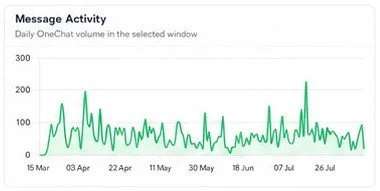
Message Activity — Daily OneChat volume in the selected window
A simple line chart plotting how many messages arrived per day across the selected window. It's there to help you spot unusually busy or quiet days — a sudden spike is often worth checking in the other panels.
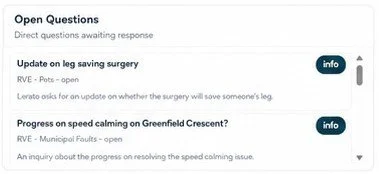
Open Questions — Direct questions awaiting response
Lists conversations where the AI has picked up a direct question from a resident that doesn't yet appear to have been answered — for example, someone asking for an update on a request. Useful as a "don't leave people hanging" checklist.
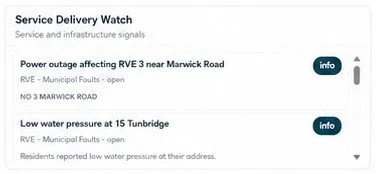
Service Delivery Watch — Service and infrastructure signals
The same list style again, this time filtered to conversations about municipal or estate infrastructure issues — for example a power outage or low water pressure — each shown with its status, group, summary, and location.
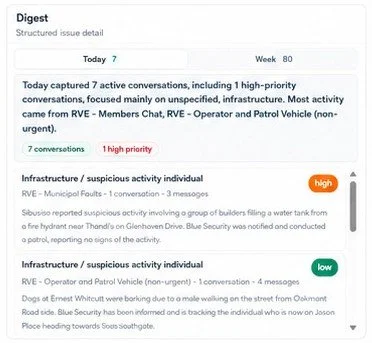
Digest — Structured issue detail
A toggle lets you switch between Today and Week. Whichever you choose, you get a short AI-written paragraph summarising the period's activity (how many conversations, how many were high priority, which groups were busiest).
Followed by a more detailed, scrollable breakdown by category and sub-category, each with its own priority colour, source group, and a short excerpt from the underlying messages. This is the most detailed, drill-down panel on the page.
Classification Coverage — How conversations have been categorised
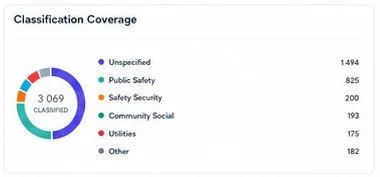
A donut chart showing how the AI has sorted all classified conversations into categories — Public Safety, Safety & Security, Community & Social, Utilities, Other, and Unspecified — with a count for each. It's a quick way to see what proportion of chat activity actually falls into a category the AI could confidently identify, versus how much is still Unspecified.
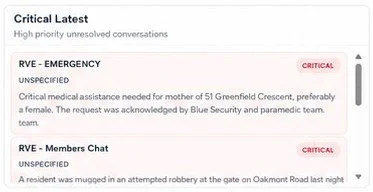
Critical Latest — High priority unresolved conversations
A short, scrollable list of the most recent conversations the AI has tagged as CRITICAL severity and still unresolved — for example an emergency request. Each entry shows the source group, a category label, and a brief AI summary, so you can jump straight to anything urgent without hunting for it in the full feed.
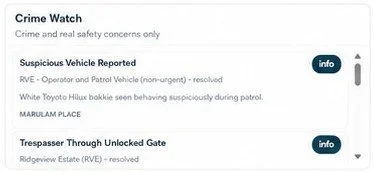
Crime Watch — Crime and real safety concerns only
The same style of scrollable list as Manager Brief, but filtered down to conversations the AI believes are specifically about crime or personal safety (for example, suspicious activity or trespassing). Each entry shows a title, a status pill, a short summary, the location, and whether it's open or resolved.
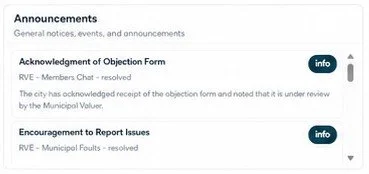
Announcements — General notices, events, and announcements
Conversations the AI has classified as informational rather than actionable — notices, acknowledgements, and general community announcements. This is mostly a record of what's already been communicated, rather than something you need to act on.
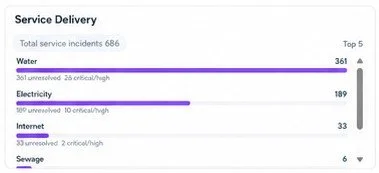
Service Delivery — Quantified rollup of service issues
Where Service Delivery Watch shows you individual conversations, this panel totals them up. It shows the overall number of service incidents for the window, then breaks that total down by utility — Water, Electricity, Internet, Sewage, and so on — with a bar for each showing how many are unresolved and how many are critical or high priority.
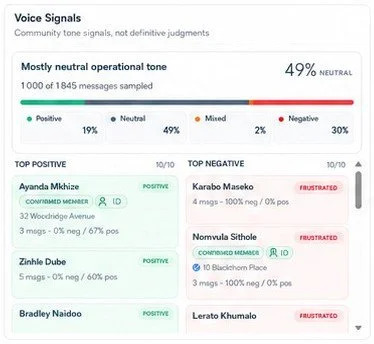
Voice Signals — Community tone signals, not definitive judgments
This panel is a general read on tone, not a definitive judgement about anyone. It shows an overall tone reading (for example "Mostly neutral operational tone"), based on a sample of messages rather than every single one, split into Positive / Neutral / Mixed / Negative percentages.
Below that are two short leaderboards, Top Positive and Top Negative, naming the residents whose messages have leaned most strongly one way, with a small stat line for each.
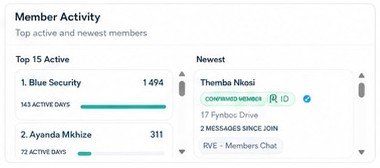
Member Activity — Top active and newest members
Two side-by-side lists: Top 15 Active shows the members who have sent the most messages, ranked, with how many days they've been active; Newest shows the most recently added members, along with their address, the group they joined through, and how many messages they've sent since joining.
Messages tab
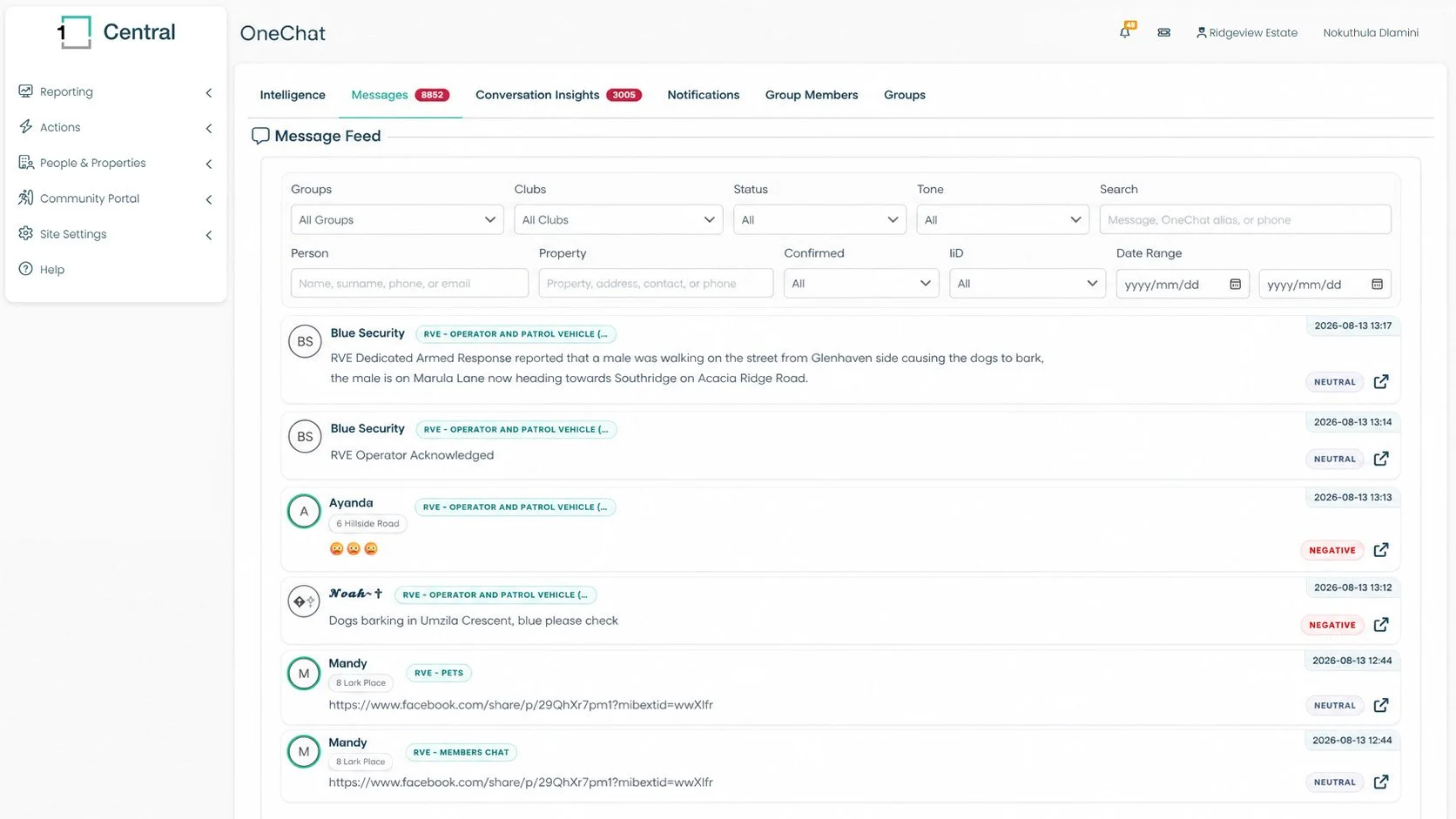
The Messages tab is the raw Message Feed — every individual WhatsApp message OneChat has picked up from your connected groups, shown one by one in date order (most recent first). Think of Intelligence as the summary, and Messages as the underlying detail behind it.
Filtering the feed
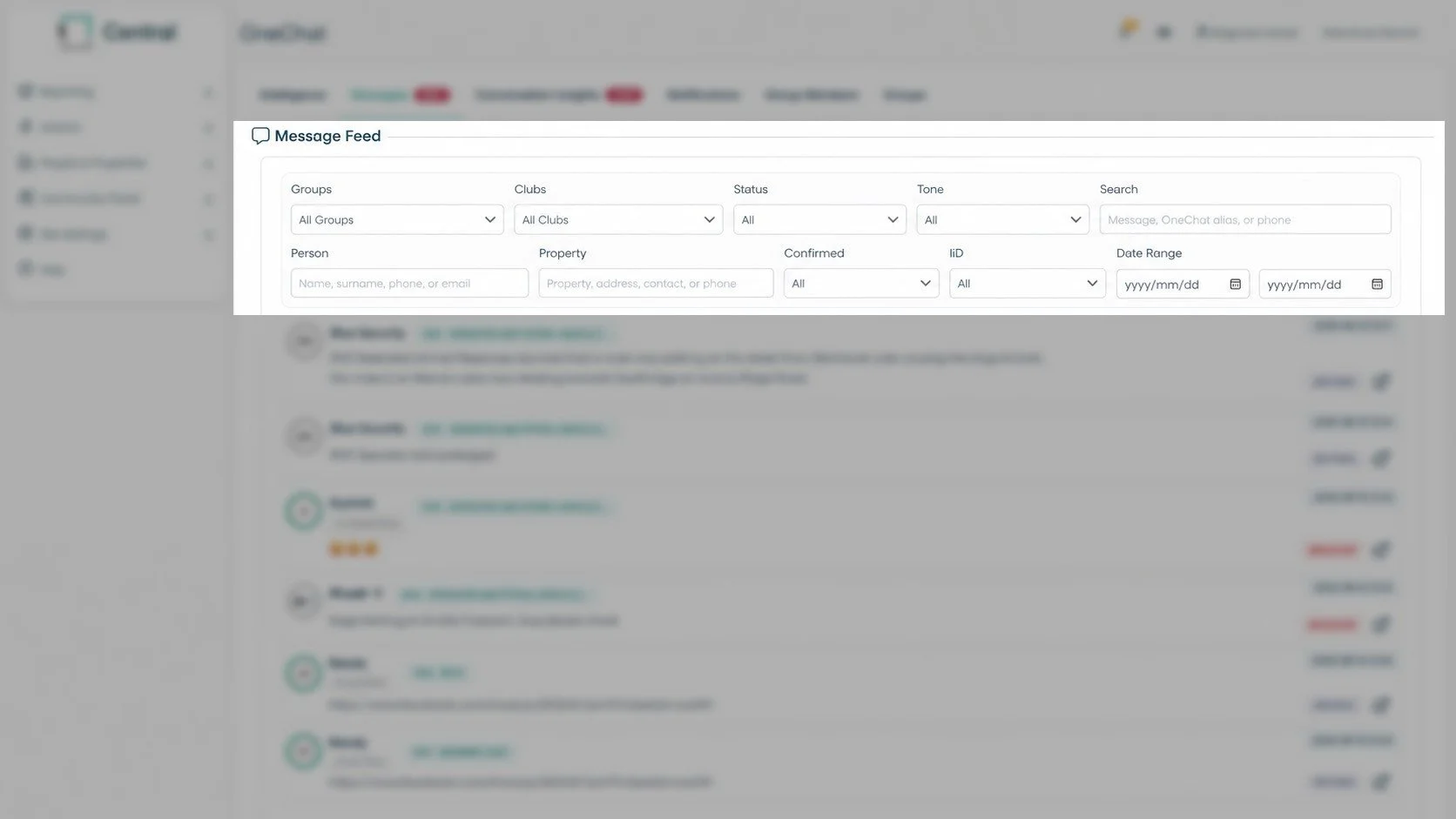
Across the top is a bank of filters you can combine to narrow the feed down: Groups, Clubs, Status, Tone, a free-text Search box (message text, name, or phone number), Person, Property, Confirmed, 1iD, and a Date Range. This is useful when you only want to see, for example, negative-tone messages from one specific group this week.
Reading a message card
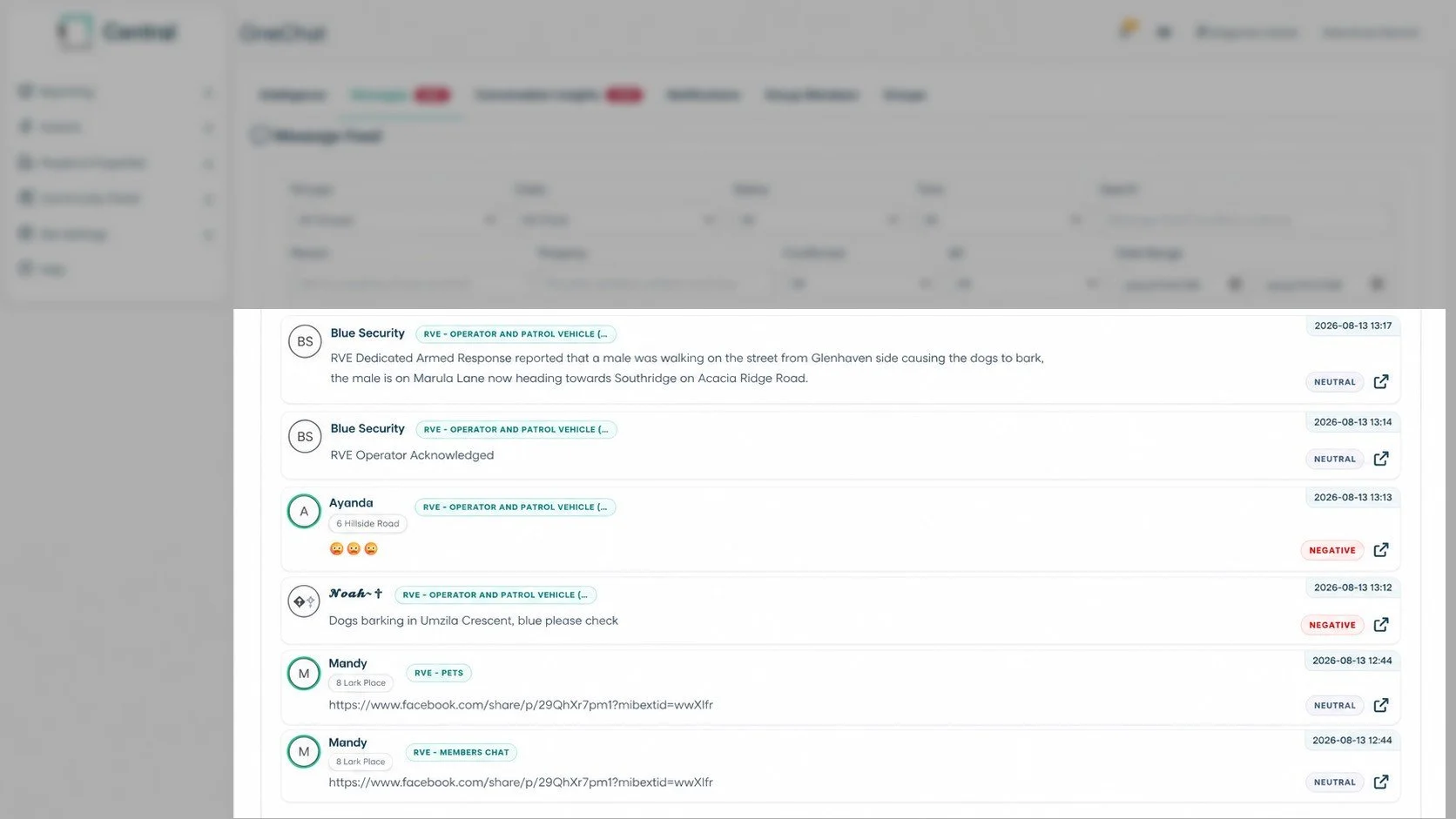
Each message in the feed shows:
The sender's name (or their WhatsApp display name, if OneChat hasn't matched them to a Central person yet) and avatar.
A coloured pill showing which group the message was sent in.
A property or address tag, when OneChat has been able to associate the sender with a specific address.
The message content itself — text, a shared link, or emoji reactions.
The date and time it was sent.
A tone tag — NEUTRAL, NEGATIVE, or POSITIVE — reflecting the AI's read on that individual message.
A small external-link icon on the right, which — based on the layout — most likely opens the full conversation this message belongs to.
Conversation Insights
Where Messages shows every message on its own, Conversation Insights shows the AI's work: each individual message has been grouped into a conversation (using the 20-minute rule) and then summarised, categorised, and rated for severity. This is the tab to use when you want the story behind the chatter, not just the raw text.
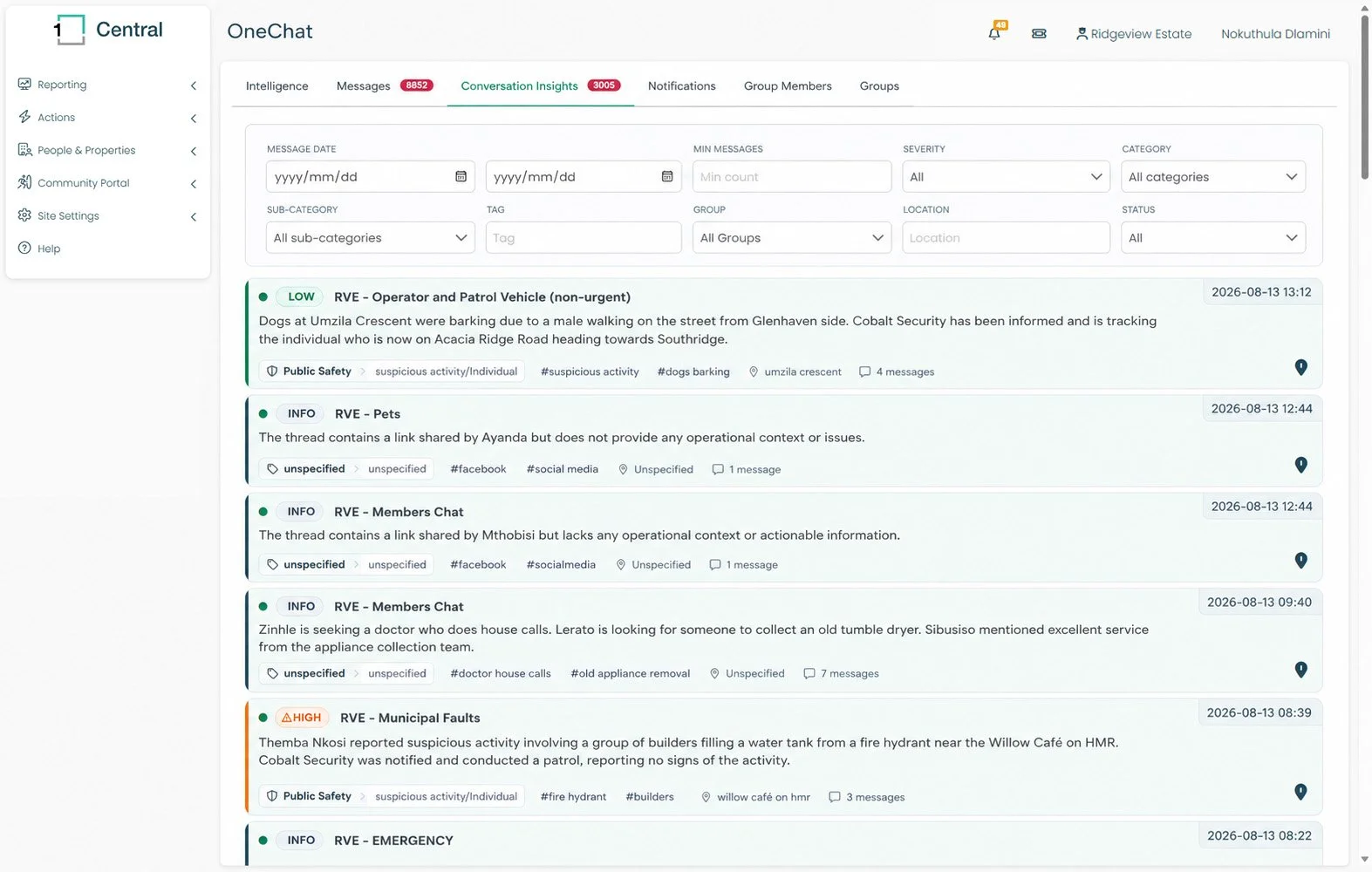
Filtering Conversations
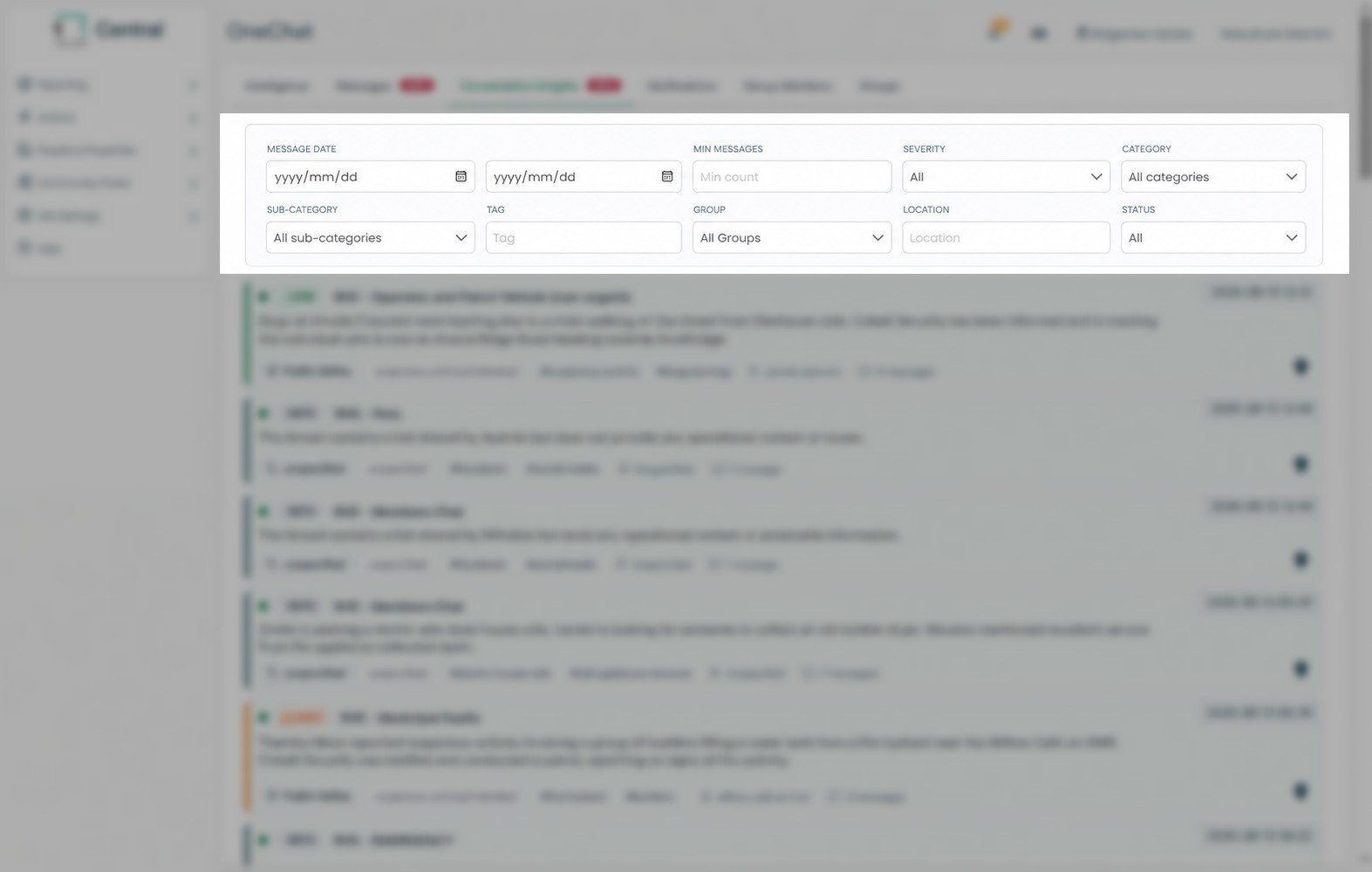
The filter bar lets you narrow conversations down by Message Date range, a minimum number of messages, Severity, Category, Sub-Category, Tag, Group, Location, and Status.
Reading a conversation card
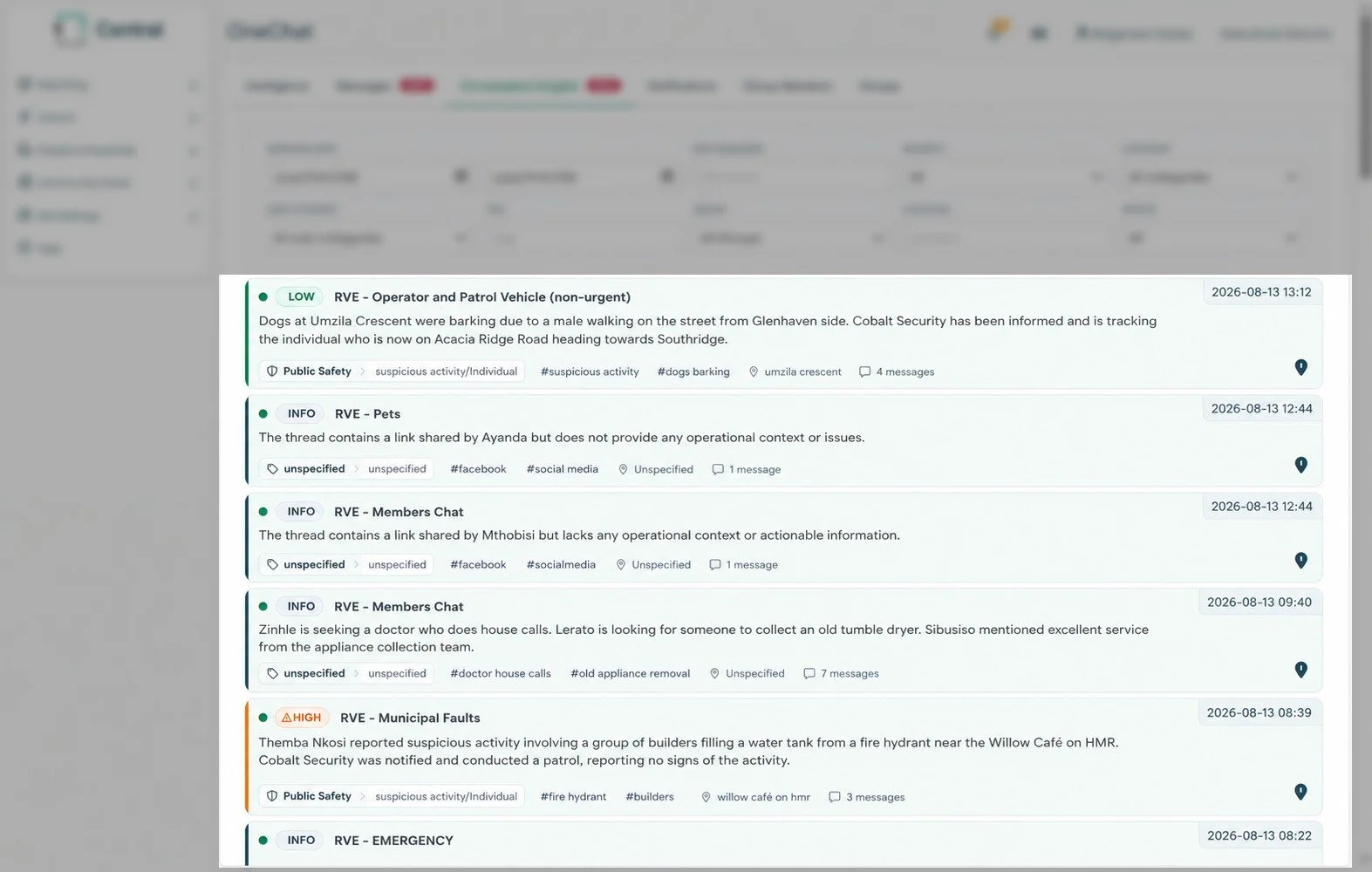
Each card in the list shows:
A severity badge — for example LOW, INFO, or HIGH — colour-coded so the most urgent items stand out.
The group the conversation happened in.
A one- or two-sentence AI-written summary of what was discussed.
A category and sub-category (for example Public Safety > Suspicious activity/Individual), plus one or more free-text tags.
The location it relates to, if one was mentioned or known.
How many individual messages made up that conversation.
The date and time of the most recent message in it.
Creating Incidents through OneChat
On the Conversation Insights tab, clicking any conversation card opens a Conversation Detail window: the full AI summary, severity, category, group, location and tags at the top
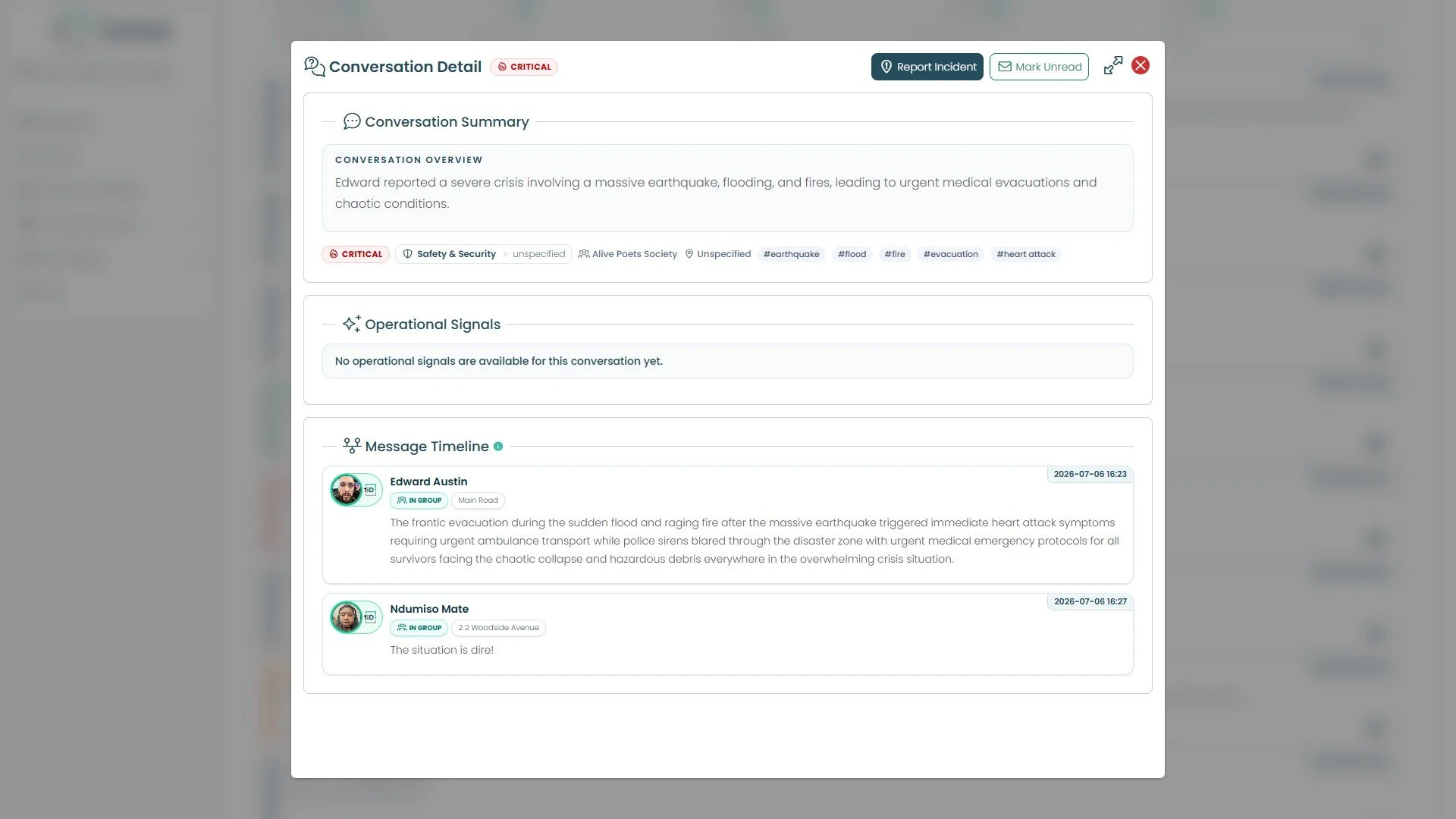
An Operational Signals panel underneath for any extra structured detail the AI picked out (this often reads "No operational signals are available for this conversation yet" — that's a normal empty state, not a fault).
A full Message Timeline showing every individual WhatsApp message in that conversation, in order, with sender, group-membership status, location, and timestamp.
Two actions sit at the top of that window:
Report Incident: turns this conversation into a formal Central Incident, so what residents reported over WhatsApp becomes part of the estate's official incident record instead of just chat history.
Note: Reporting Incidents through OneChat is only available with the OneChat Report Licence.
Mark Unread: puts a conversation you've already opened back into an unread state, useful for flagging it for later or handing it to a colleague.
Notifications Tab
Notifications is where OneChat surfaces anything it thinks a manager should actively review and clear — separate from simply browsing the feed. It's the tab behind the "New Alerts" number shown on the Intelligence dashboard.
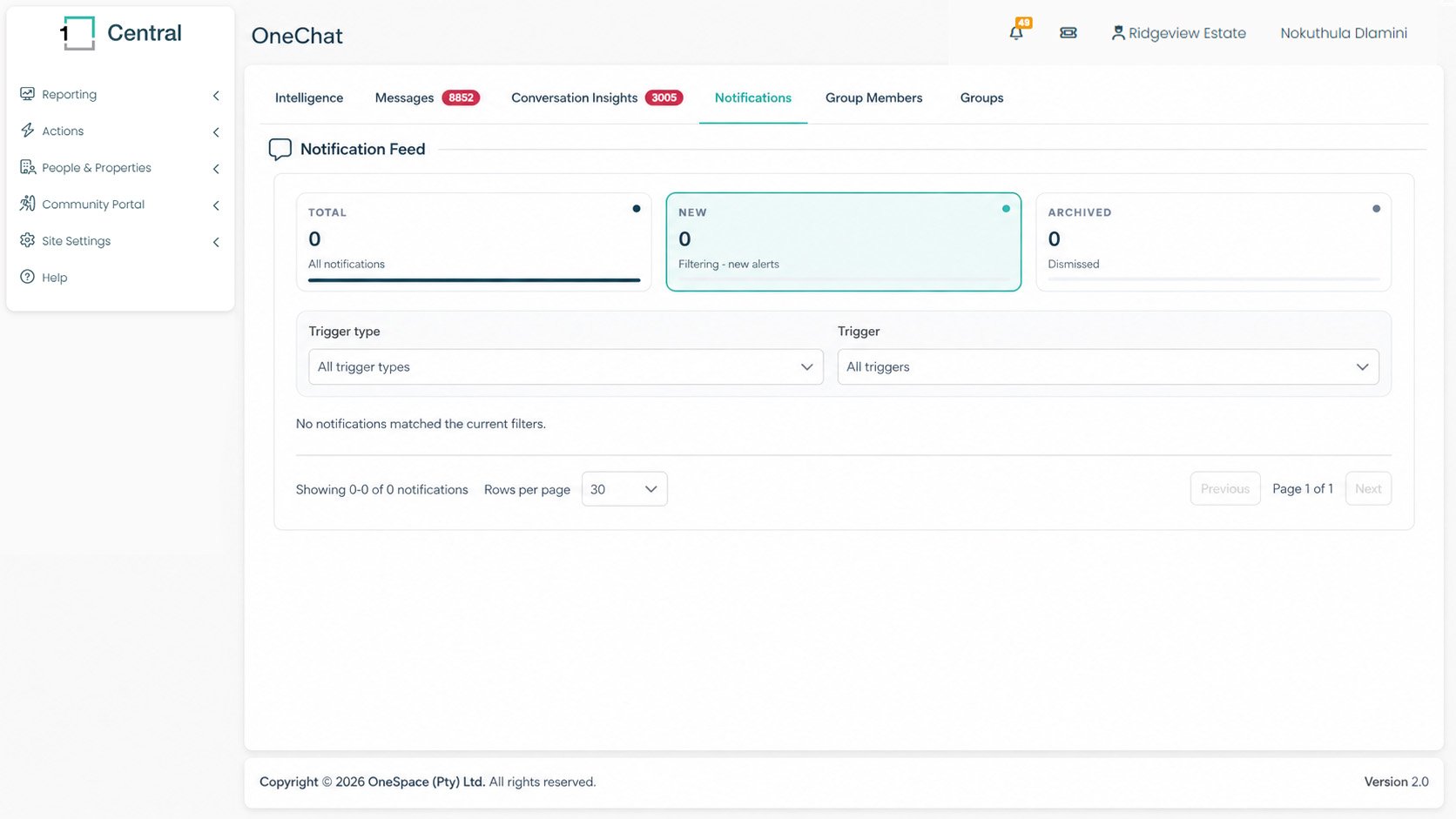
The three counters
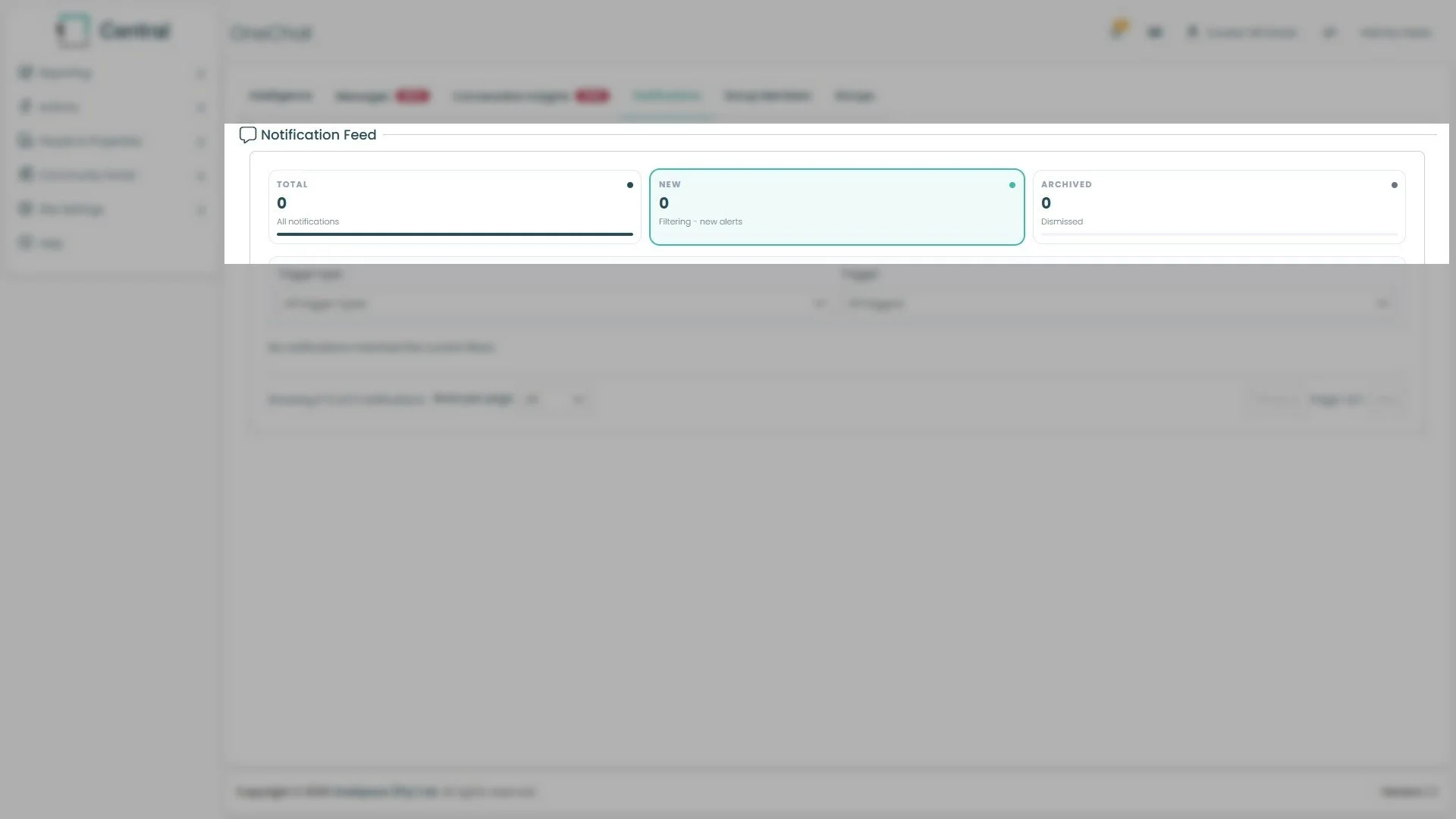
Total — every notification that has ever been raised.
New — notifications still waiting for a manager to act on (this is the number shown as "New Alerts" elsewhere in OneChat).
Archived — notifications that have been dismissed.
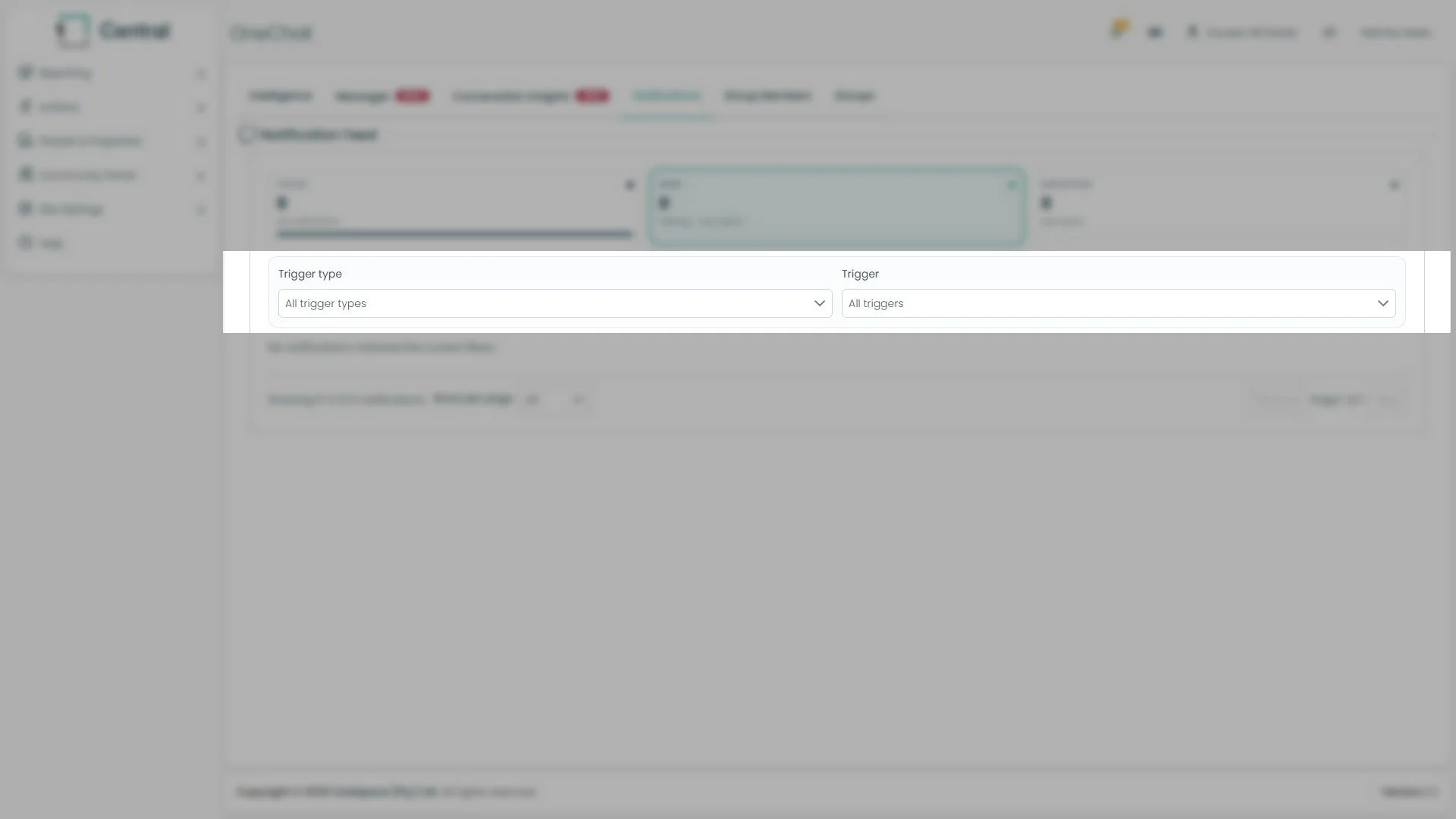
Filtering and the list
You can filter by Trigger Type and by the specific Trigger. Below the filters, matching notifications are listed with paging controls (rows-per-page, previous/next).
Group Members
Group Members is a single flat list of every person across every connected WhatsApp group for your site — this is the screen to use when you want to look someone up, rather than browse conversations.
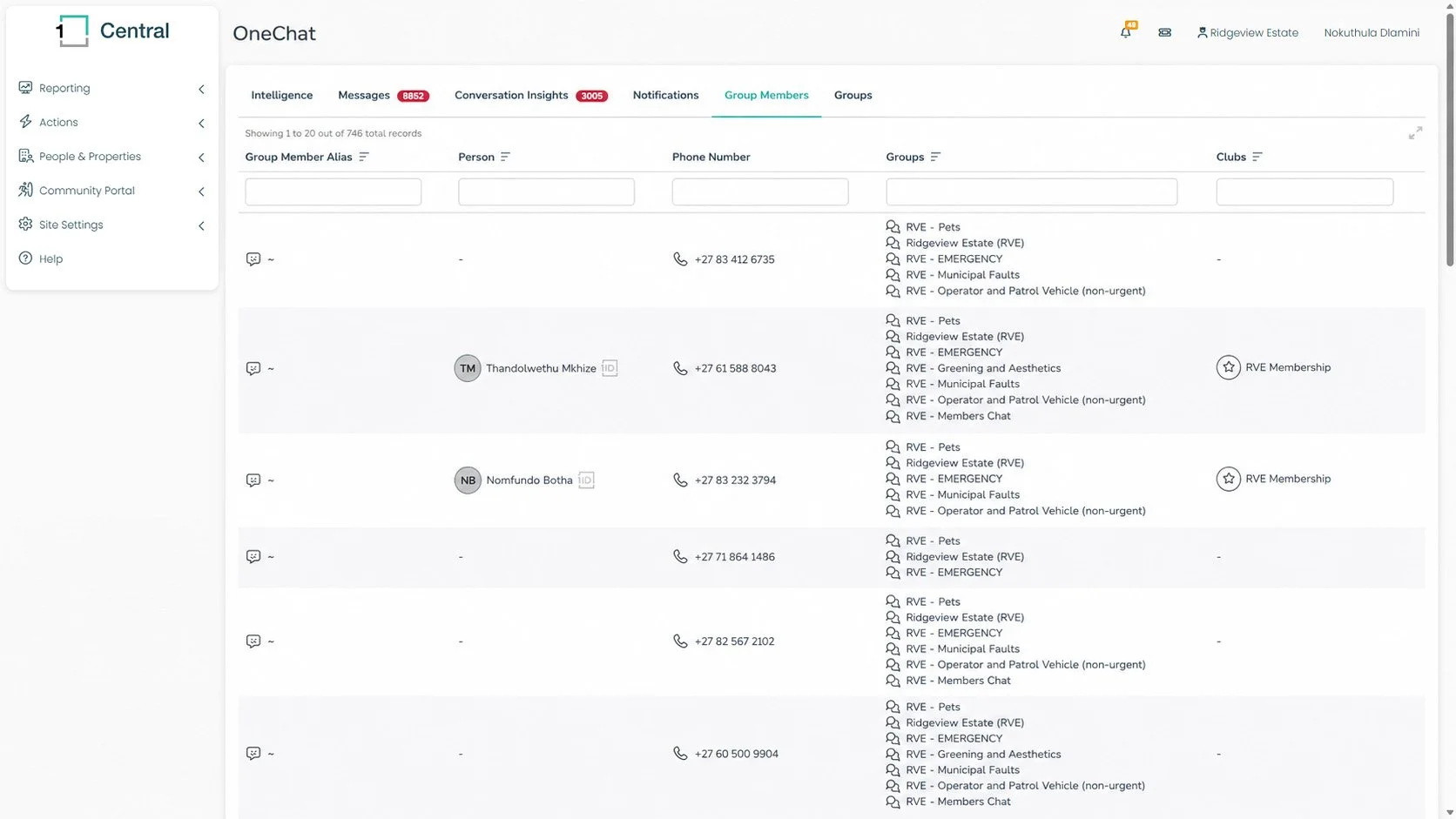
The Columns
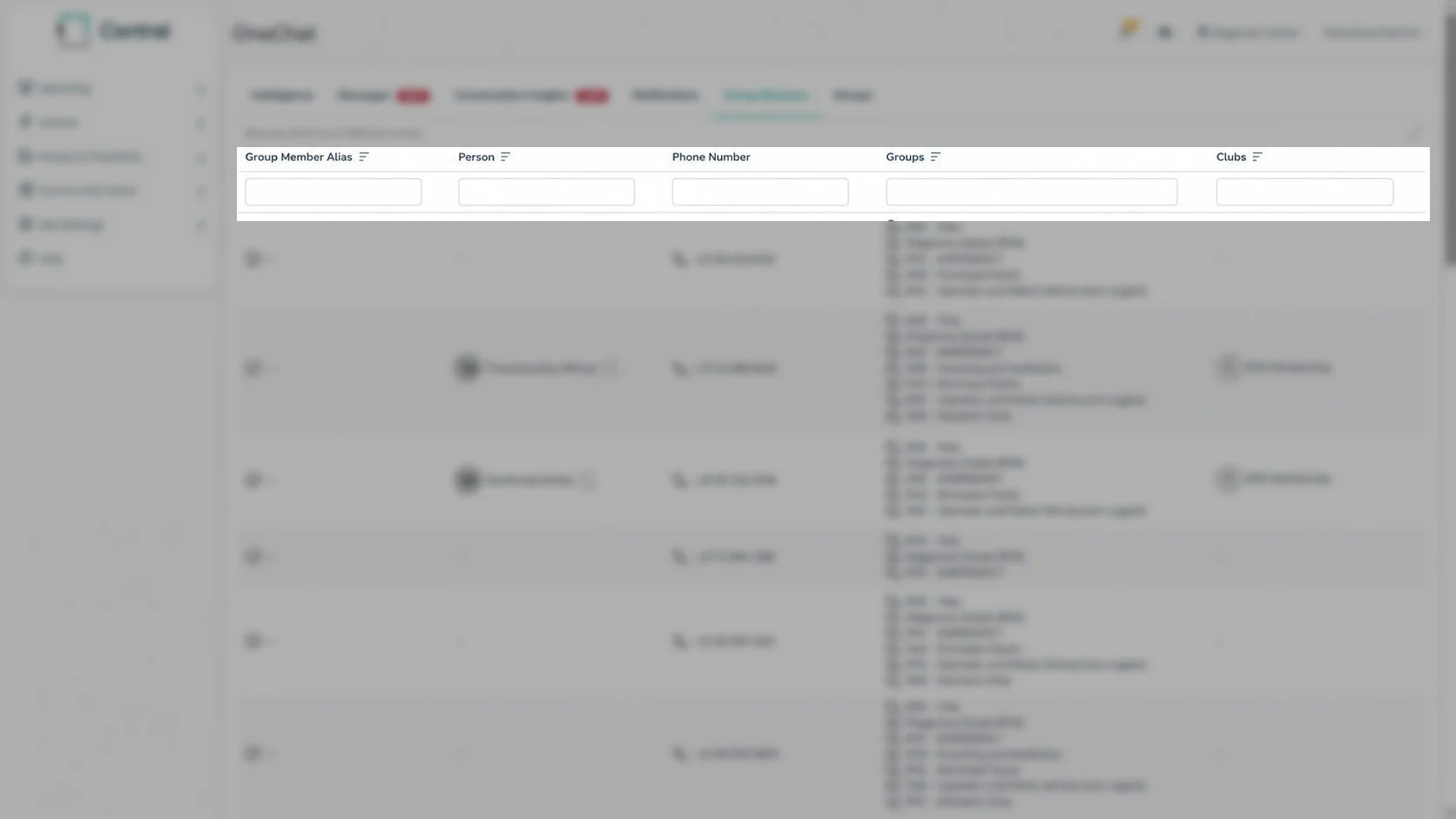
Group Member Alias — the name or nickname the person uses on WhatsApp.
Person — the matching Central resident profile, if OneChat has been able to find one from the phone number. A small "1iD" tag appears next to matched names. Where no match has been made, this column shows a dash.
Phone Number — the WhatsApp number the member is using.
Groups — every connected WhatsApp group this person belongs to (a member can be in more than one).
Clubs — any Central club this person's group membership has been linked to, for example "CHE Membership".
Each column has its own search box just under the header, and the Groups and Clubs columns can be sorted.
Linking or adding a person from Group Members
Where a group member's phone number hasn't been matched to anyone Central already knows, the Person column shows a + icon instead of a name. Clicking it opens a panel where you can either link that WhatsApp member to a person who already exists in Central, or create a brand-new Central person for them — without leaving OneChat.
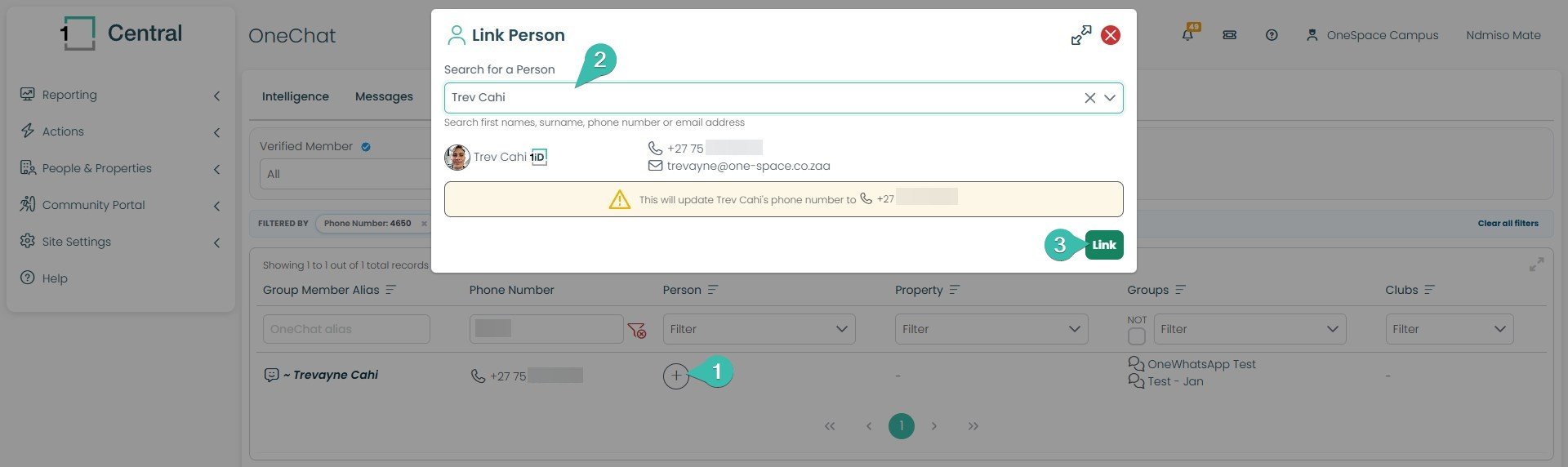
This is handy when someone is already in Central's records but is using a different phone number on WhatsApp — for instance, a resident registered with their landline or a spouse's number, but chatting from their own cellphone. Type their name (or phone number or email) into the Search for a Person field:
If a matching Central person is found, their existing profile card appears — photo, name, phone number, and email. A yellow notice confirms that linking will update that person's phone number on file to match the number they're using on WhatsApp. Clicking Link confirms the match and updates the record.
If no matching person is found in Central, the panel switches to an Add Person form instead, letting you create a new Central person and link them in one step (see below).
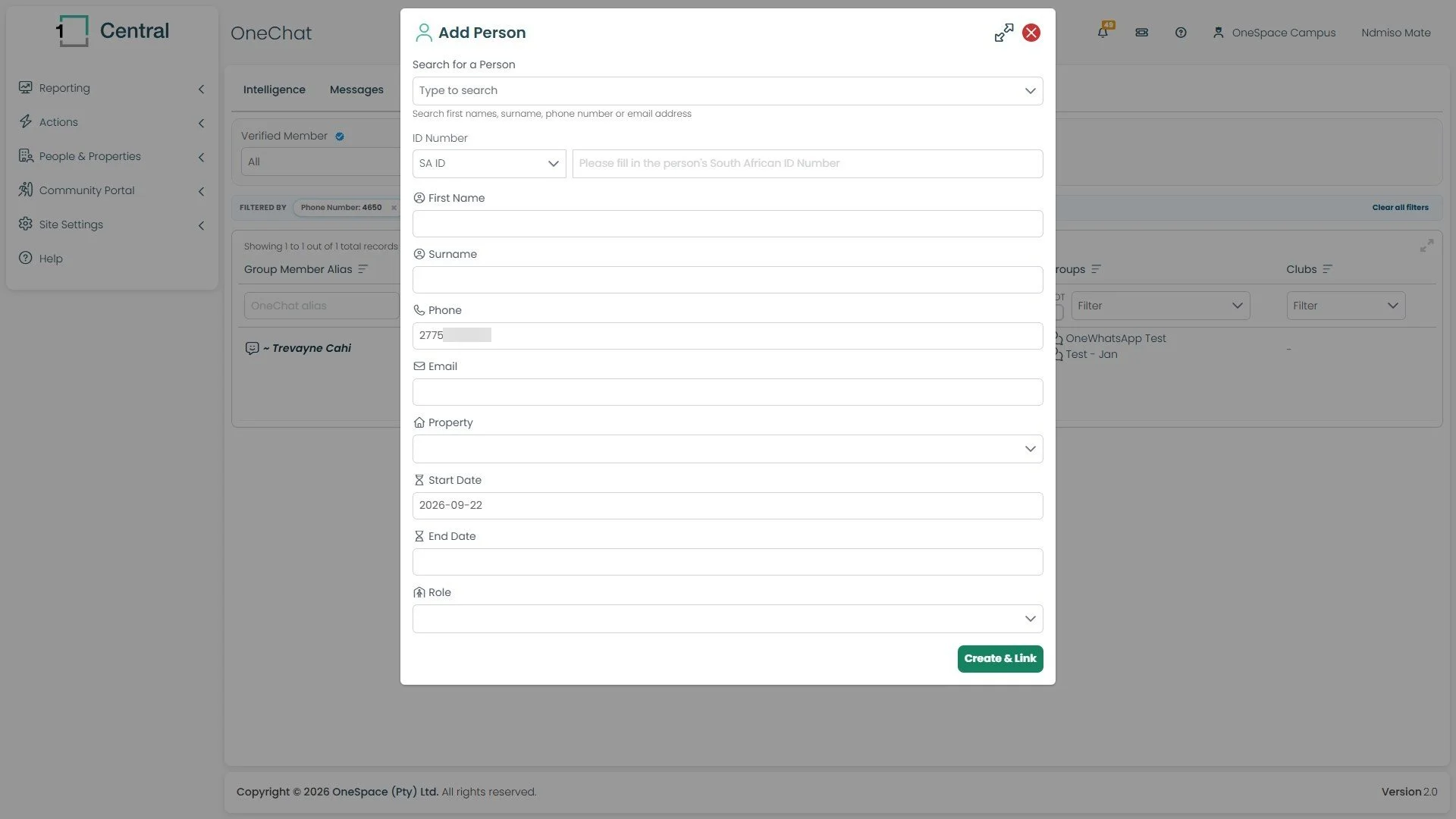
The Add Person form lets you capture the essentials on the spot: an SA ID Number, First Name, Surname, Phone (pre-filled with the WhatsApp number they messaged from), Email, Property, a Start Date (defaulting to today) and optional End Date, and a Role. Clicking Create & Link creates the new Central person record and links this WhatsApp member to it in the same step.