

SNIPR of Faces

Thank you for selecting SNIPR Online to empower your community. We at OneSpace are more than happy to assist you in case you have any troubles with your SNIPR system.
This guide was made to provide a quick reference for common actions, functions, and workings that you will be using. If this guide fails in assisting you with the platform functionality, please do not hesitate to email us on support@one-space.co.za.
This guide will address the following:
What is SNIPR of Faces?
SNIPR of Faces is face recognition for your site. You give SNIPR a photo of a person you want to know about. This person is called a Person of Interest. When your face recognition camera sees that person, SNIPR shows an alert on your Dashboard.
With SNIPR of Faces you can:
Build a list of known faces (your Face Hotlist).
Get an alert on the Dashboard when a person on your list is seen, during the times you choose.
Search for every time a person on your list was seen by your cameras.
How it works:
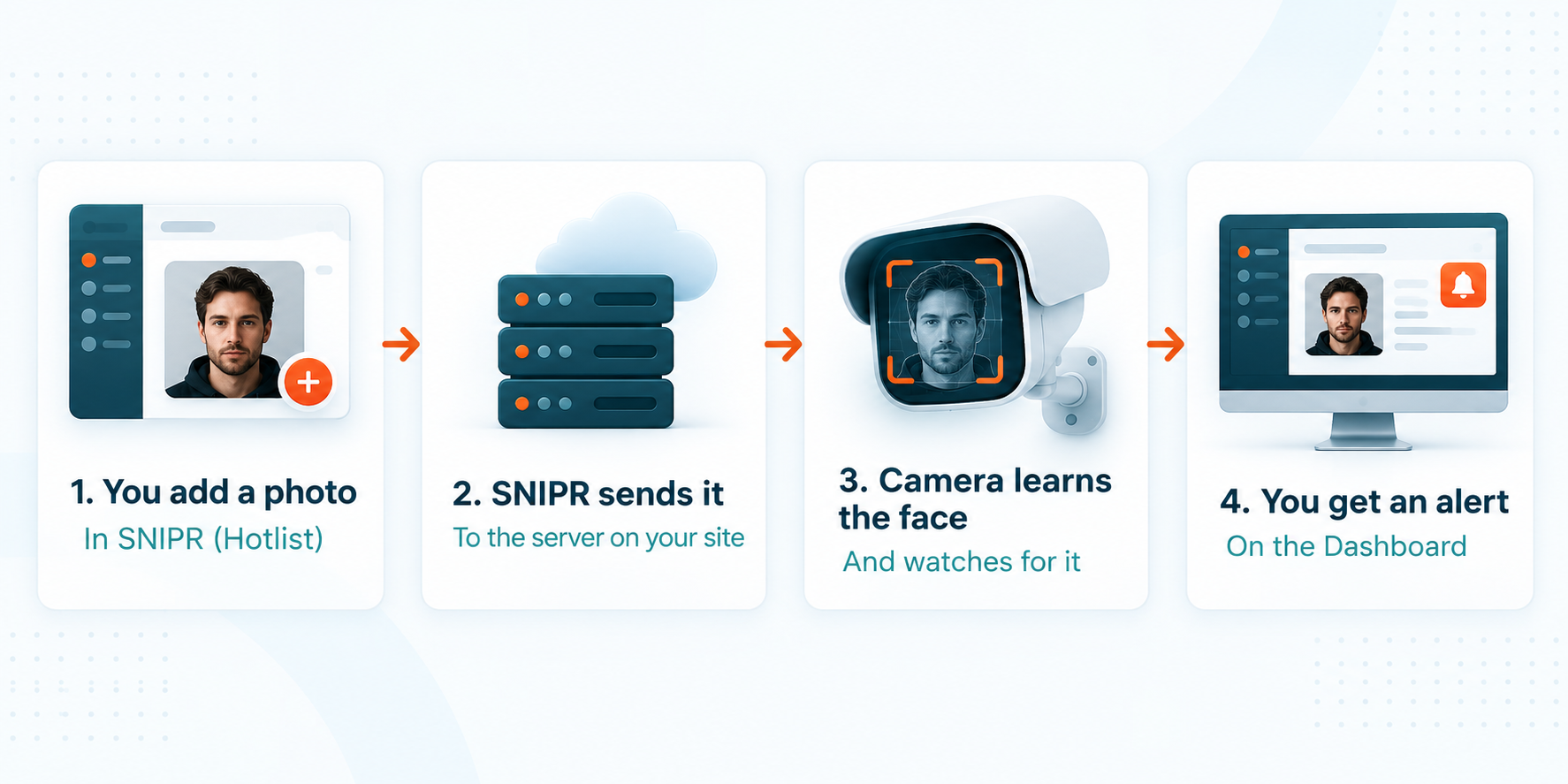
You add a photo of the person to a Hotlist in SNIPR.
SNIPR sends the photo to the SNIPR Distribution Server — a small computer on your site.
The Distribution Server sends the photo to your face recognition camera.
The camera saves the face in its list of known faces.
The camera checks every face it sees against this list.
When the camera sees a face it knows, it sends a live photo of what it saw to SNIPR. SNIPR then shows you an alert.
What you need on site
Your OneSpace installer sets this up for you. You only need to keep it working.
A camera that can do face recognition.
Internet for the camera.
A SNIPR Distribution Server (a small PC on your site). It must:
Always be switched on.
Always be connected to the internet.
Be on the same network as your face recognition cameras.
Know the login details of every face camera.
Important: Please do not switch off or unplug the Distribution Server. If it is off, new faces will not reach your cameras.
If you change camera passwords, your router or your network, please tell OneSpace Support first.
Adding a Person of Interest
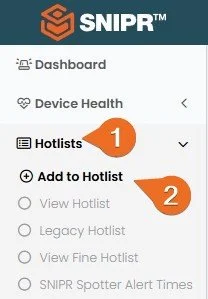
Open the menu on the left.
Select Hotlists
Select Add to Hotlist
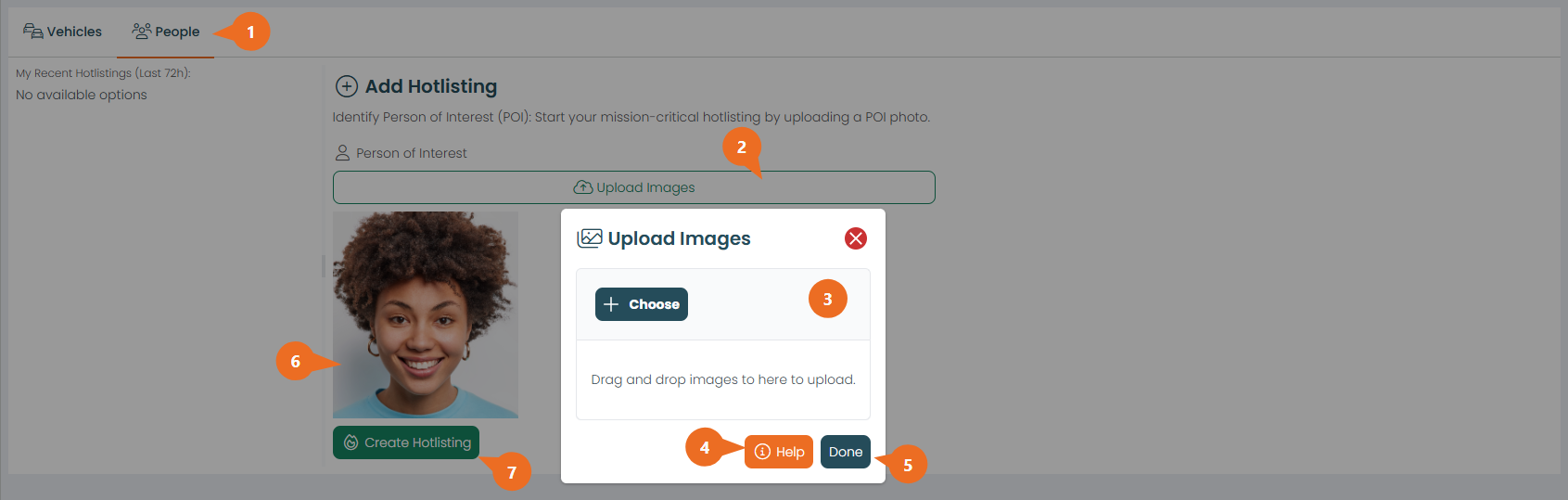
Ensure you are on the People Tab.
Click Upload Images.
You can specify an image you want to upload. Or drag and drop the image into this area here, you upload the wanted Persons Face into the SNIPR System.
It is incredibly crucial that you upload a good quality image. Select the help button to see how to do this.
Select Done once you have confirmed the picture you want to upload.
This section will display the image of the Person of Interest that you have submitted.
Select Create Hotlisting to start the Hotlisting Create wizard.
Create Hotlisting - Hotlist Information (Person)
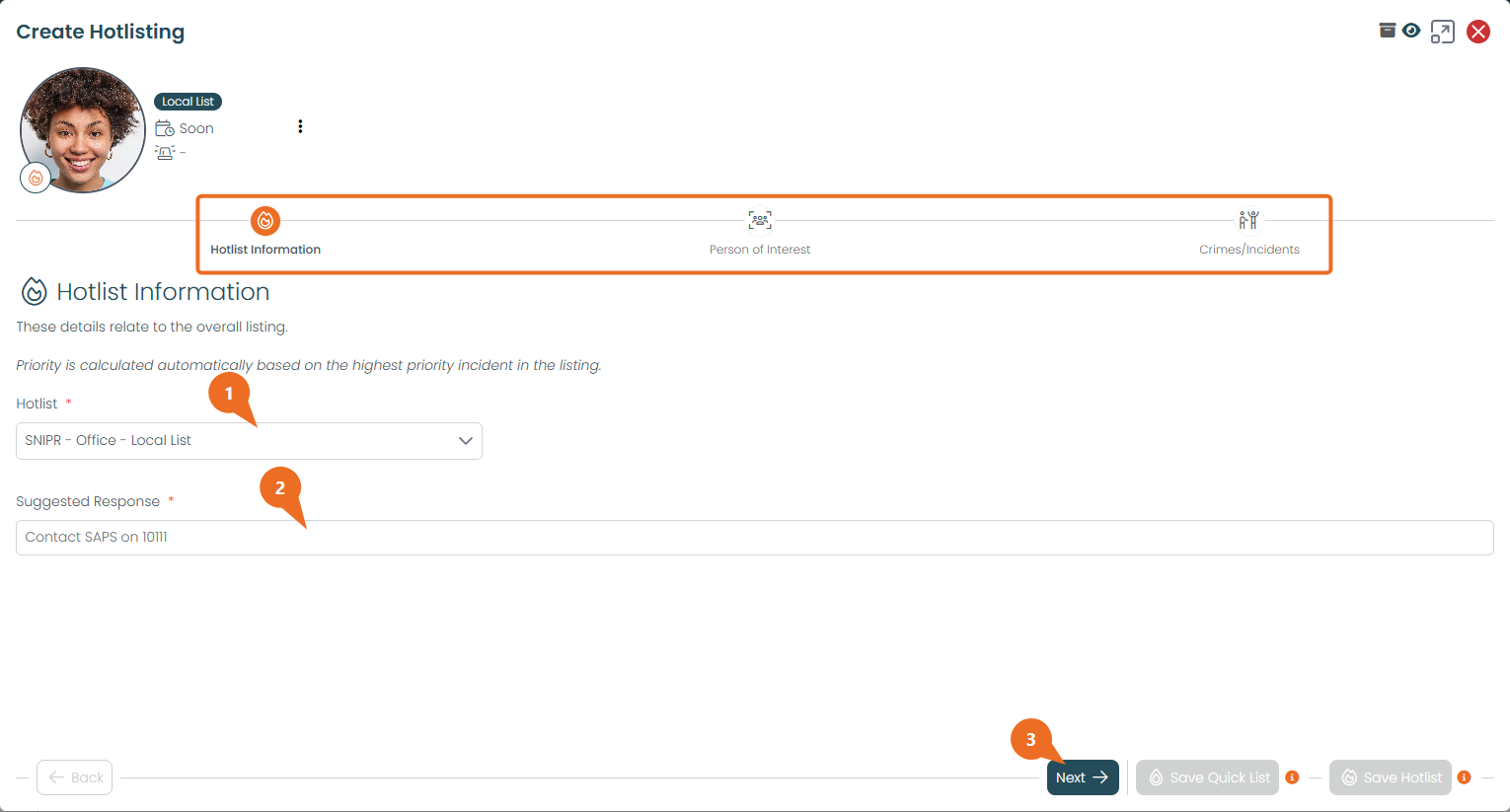
Much like vehicles. The process for Adding a Person of Interest will be the same for Vehicles.
For the Hotlist Information part. You must:
Declare which Hotlist your Person will be tied to.
What the response procedure should be when the Persons Face generates an alert.
Select Next to proceed to the next step.
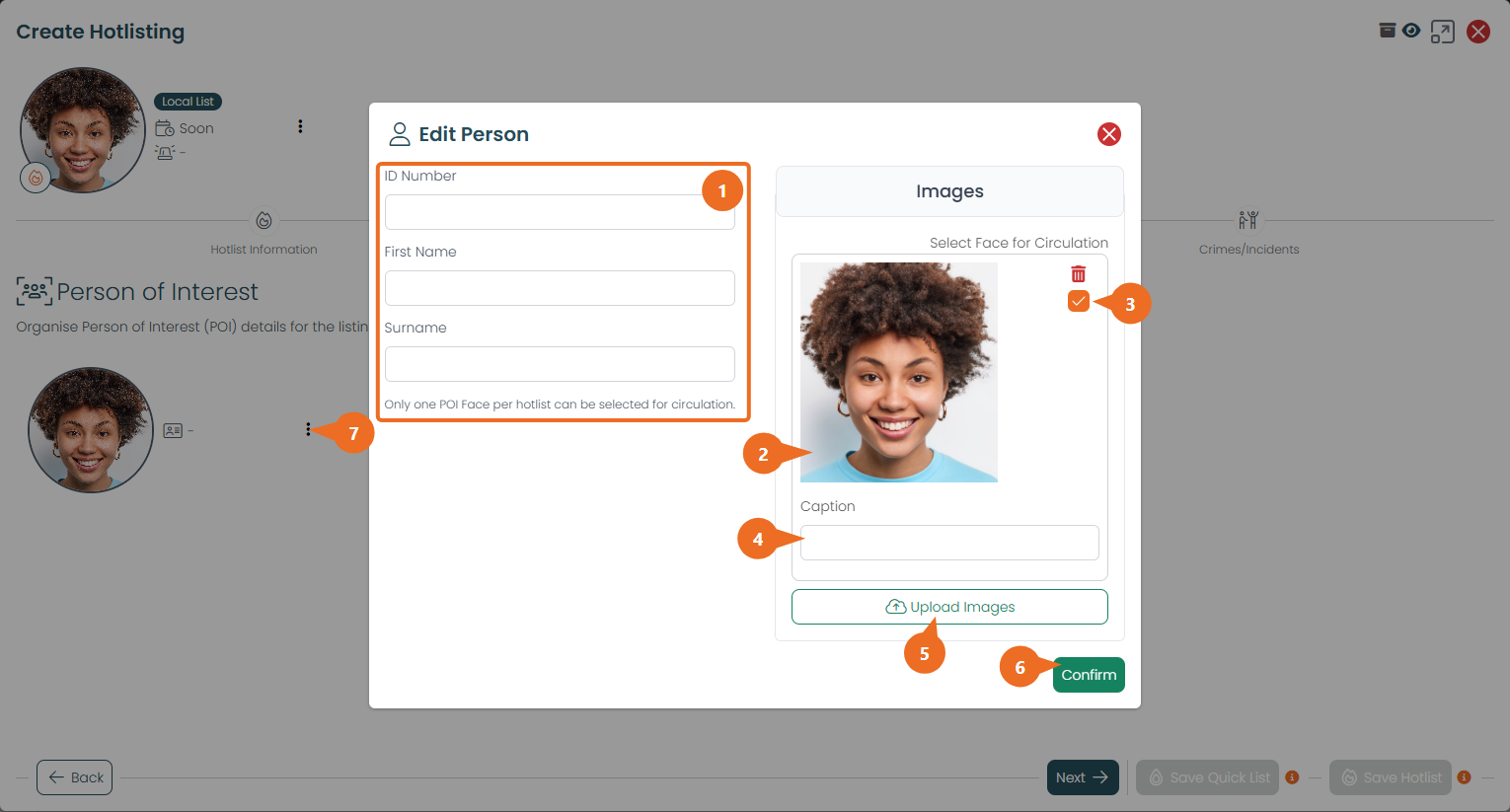
Insert the information tied to the Person you are adding into your Hotlist here.
The supplied image of that person will be presented here.
Note: For the best face match results, ensure you upload a close-up picture of the person from their shoulder up.
If this box is ticked, this face will be used to generate the alert. Only 1 Picture can be used as a Person of Interest per Hotlisting.
You can provide a caption for the Person of Interest picture you are uploading here.
You can add 4 more images of a Person or any other pictures, by selecting the upload button.
Selecting Confirm will save your changes.
Selecting these 3 dots will allow you to edit or remove a Person of Interest.
Unlike vehicles, you can only ever have 1 Person linked to a Person Hotlist. Select Next at the bottom of the page to proceed to the next step.
Adding an incident follows the exact same process as it does for vehicles.
Set up face alerts (Spotter Alert Time)
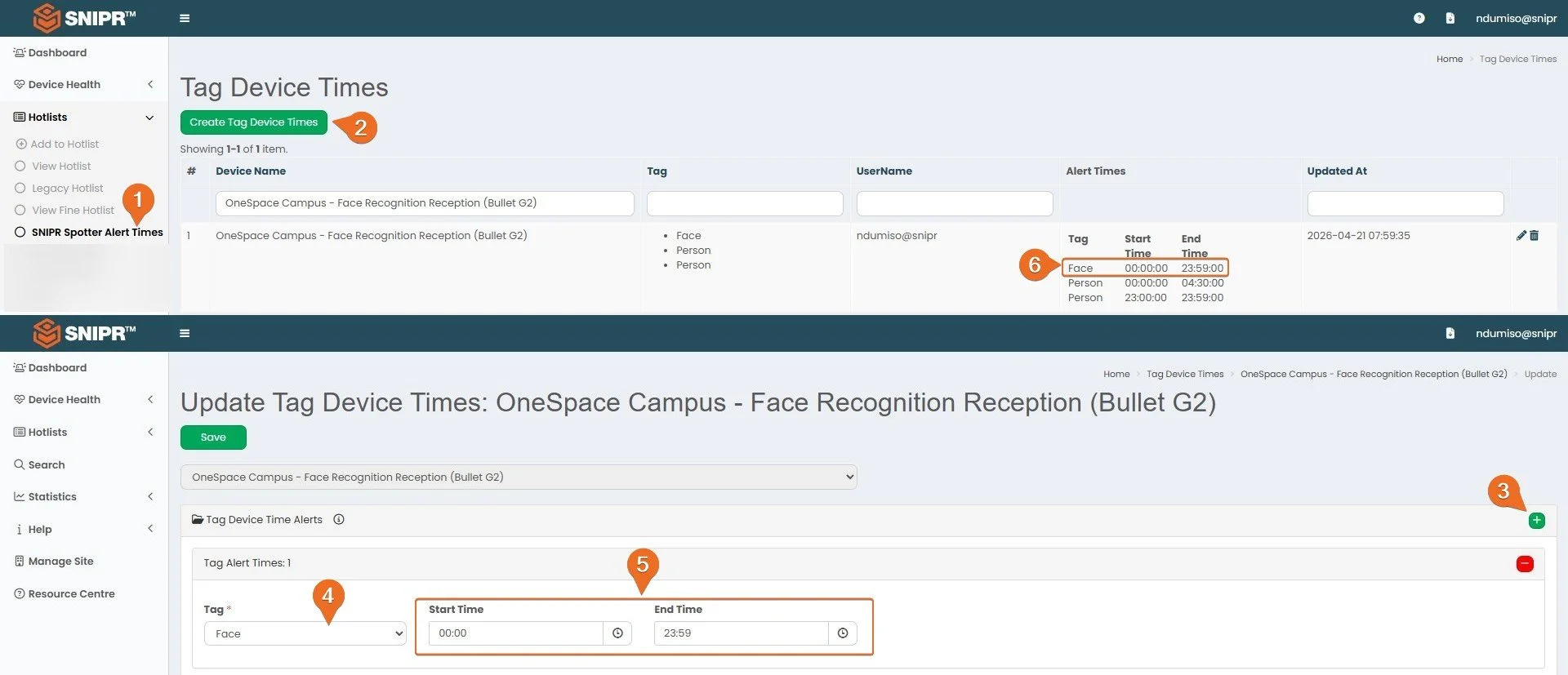
Important: SNIPR will only show an alert for a face if you set up a Spotter Alert Time for the camera with the Face tag. This tells SNIPR which camera and what time of day to alert you.
In the menu on the left, select Hotlists → SNIPR Spotter Alert Times.
Select Create Tag Device Times. Then choose the camera. (To change times you already have, select the pencil icon next to the camera.)
Select the green + button to add an alert time. You can add more than one.
Choose the Tag. For face alerts, choose Face.
Set the Start Time and End Time. SNIPR will only alert you between these times.
Select Save. Your alert time now shows in the list. Check that the Face times are correct.
Tip: For alerts all day and all night, use 00:00 to 23:59.
Times that go past midnight need two rows (repeat step 3). For example 23:00 – 23:59 and 00:00 – 04:30.
Other tags (Animal, Person, Vehicle, Truck, Tanker, Taxi) are for other kinds of alerts. Person is not the same as Face.
Note: Face alerts show on your SNIPR Dashboard as TAGGED.
See a Face Alert
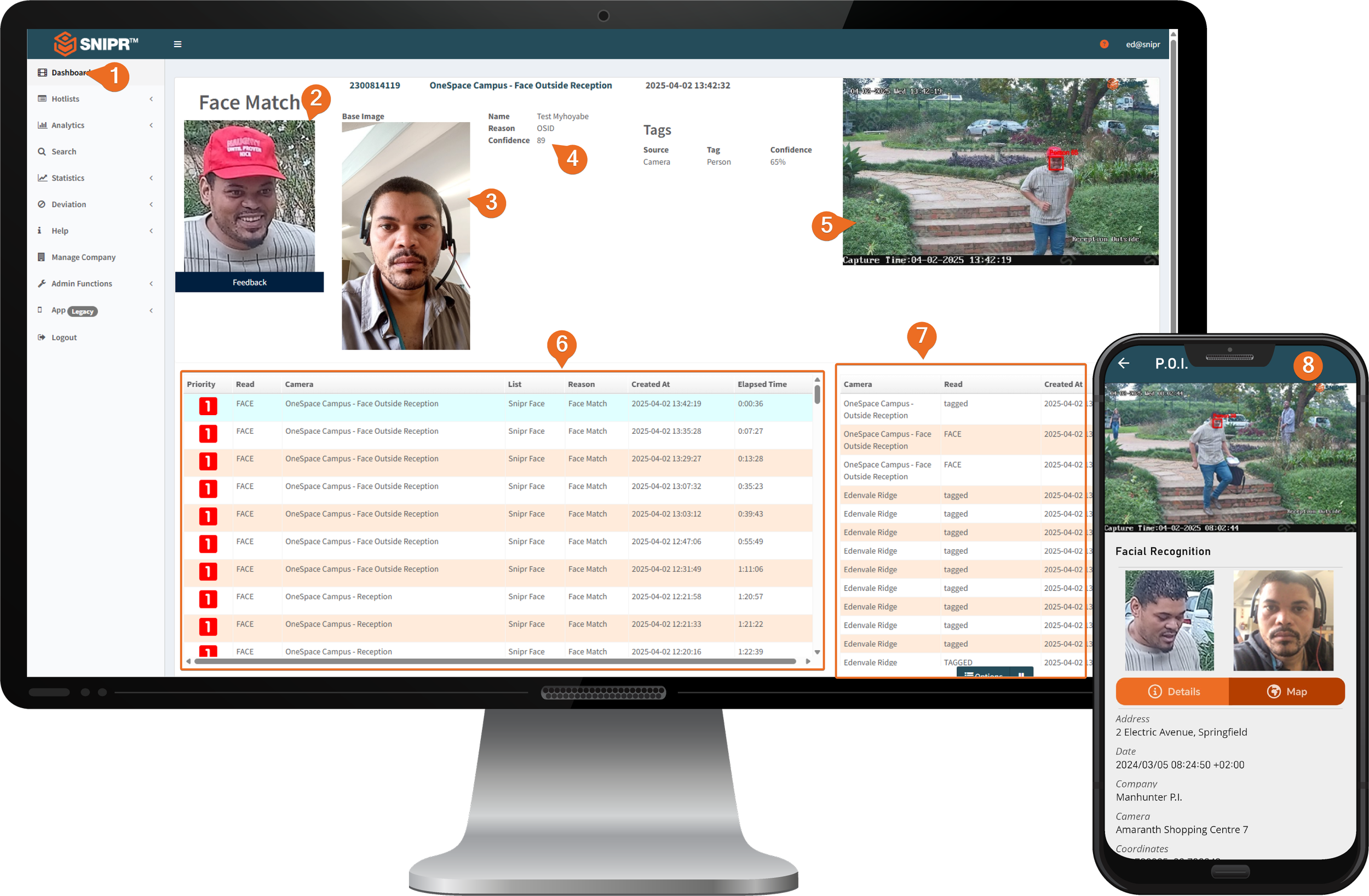
When your camera sees a person on your Face Hotlist, during your Spotter Alert Time, you get an alert in two places: on your SNIPR Online Dashboard and on your OneSpace Patrol App.
Select Dashboard in the menu on the left.
Face Match — this is the face the camera saw.
Base Image — this is the photo you uploaded to your Hotlist. Compare it with the Face Match photo.
Name, Reason and Confidence — who the person is, the reason they are on your Hotlist, and how sure the camera is about the match.
Confidence is a score out of 100. A higher number means the camera is more sure that it is the same person.
The score is only a guide. Always compare the two photos yourself before you act.
Live snapshot — the full picture from the camera at the moment it saw the person, with the camera name and capture time.
Today's alerts — a list of all the face alerts from today. Click on an alert to show its details at the top of the screen.
Live feed — every face your cameras capture, as it happens. These are not all alerts — it shows all face capture events.
OneSpace Patrol App — you also get the face alert on the Patrol App. Your team can see the alert on their phones, even when they are away from a computer.
Tip: In the list of today's alerts, a face alert shows FACE in the Read column and Face Match as the Reason.
When you get an alert, follow the Suggested Response you entered when you created the hotlisting.
Search for a Face
You can find every time a person on your Face Hotlist was seen. There are two ways to do this.
Option A: From the Hotlist page
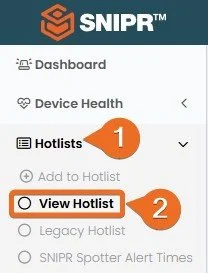
Select Hotlists.
Then View Hotlist.
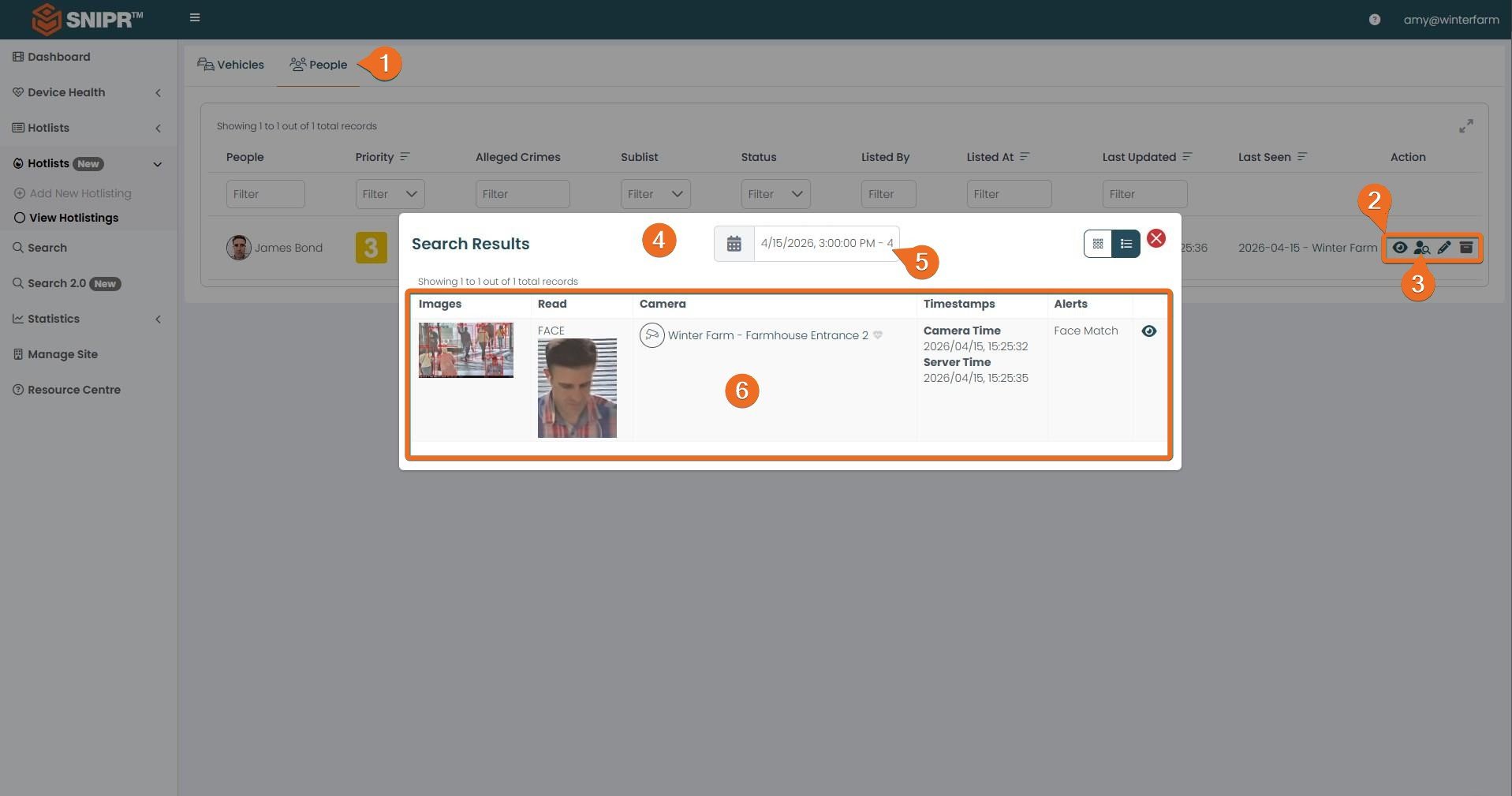
Select the People tab.
Find the person. Look at the Action buttons on the right.
Select the search button.
A Search Results window opens.
Change the date to look at a different time.
You can see when and where the person was seen. Select the eye icon to see more.
Option B: From the Search page
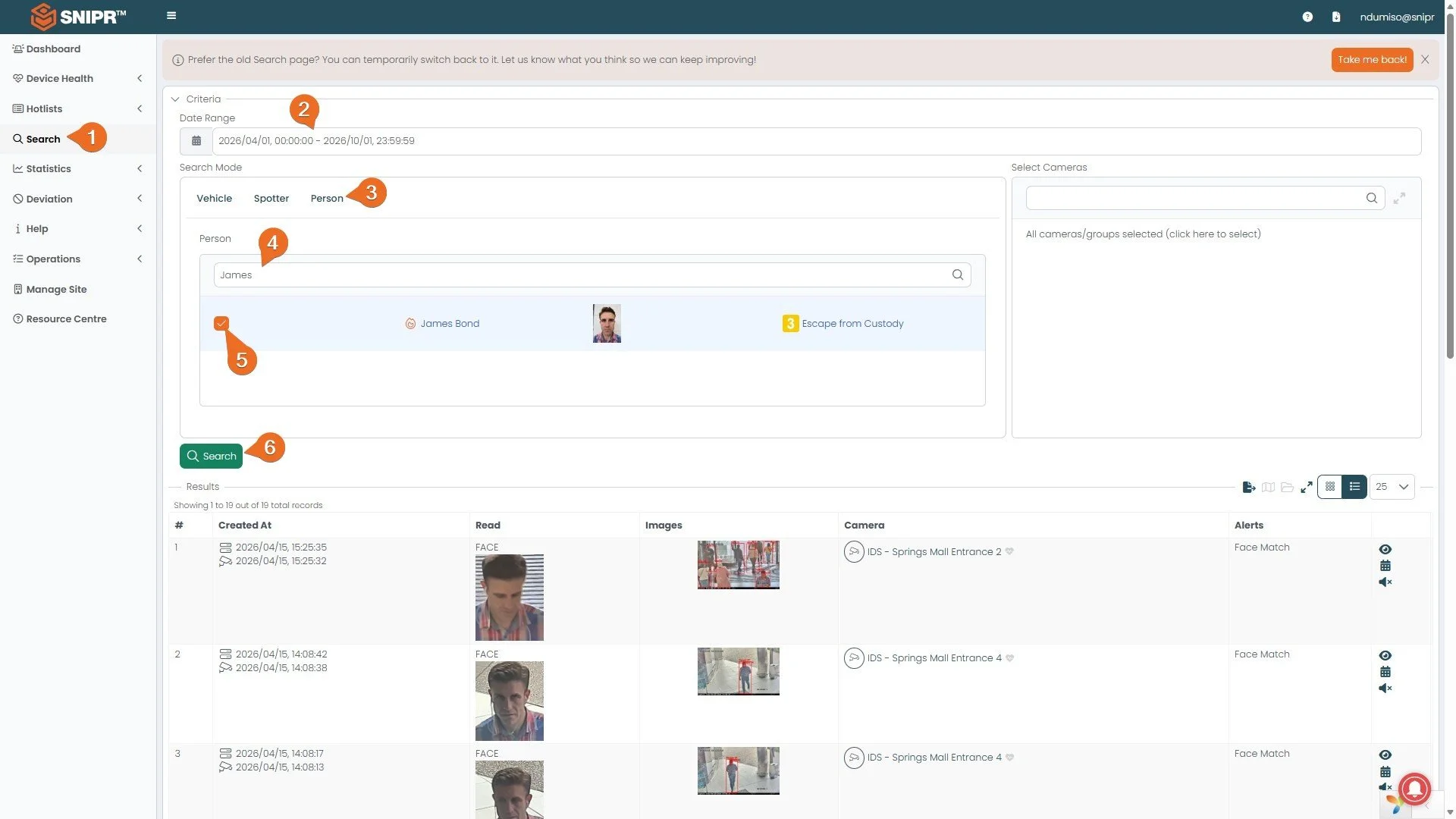
Select Search in the menu on the left.
Choose the date and time you want to search.
Select the Person tab.
Type the person's name to find them.
Tick the box next to the person.
Select Search. SNIPR shows every time this person was seen by your face cameras.
Important: You can only search for people who are on your Face Hotlist.
SNIPR can only find a person from the time you added them. If the camera saw the person before you added them, it will not show in the results.
How to get a good photo
A good photo helps the camera find the right person. A bad photo can mean no alert, or the wrong person.
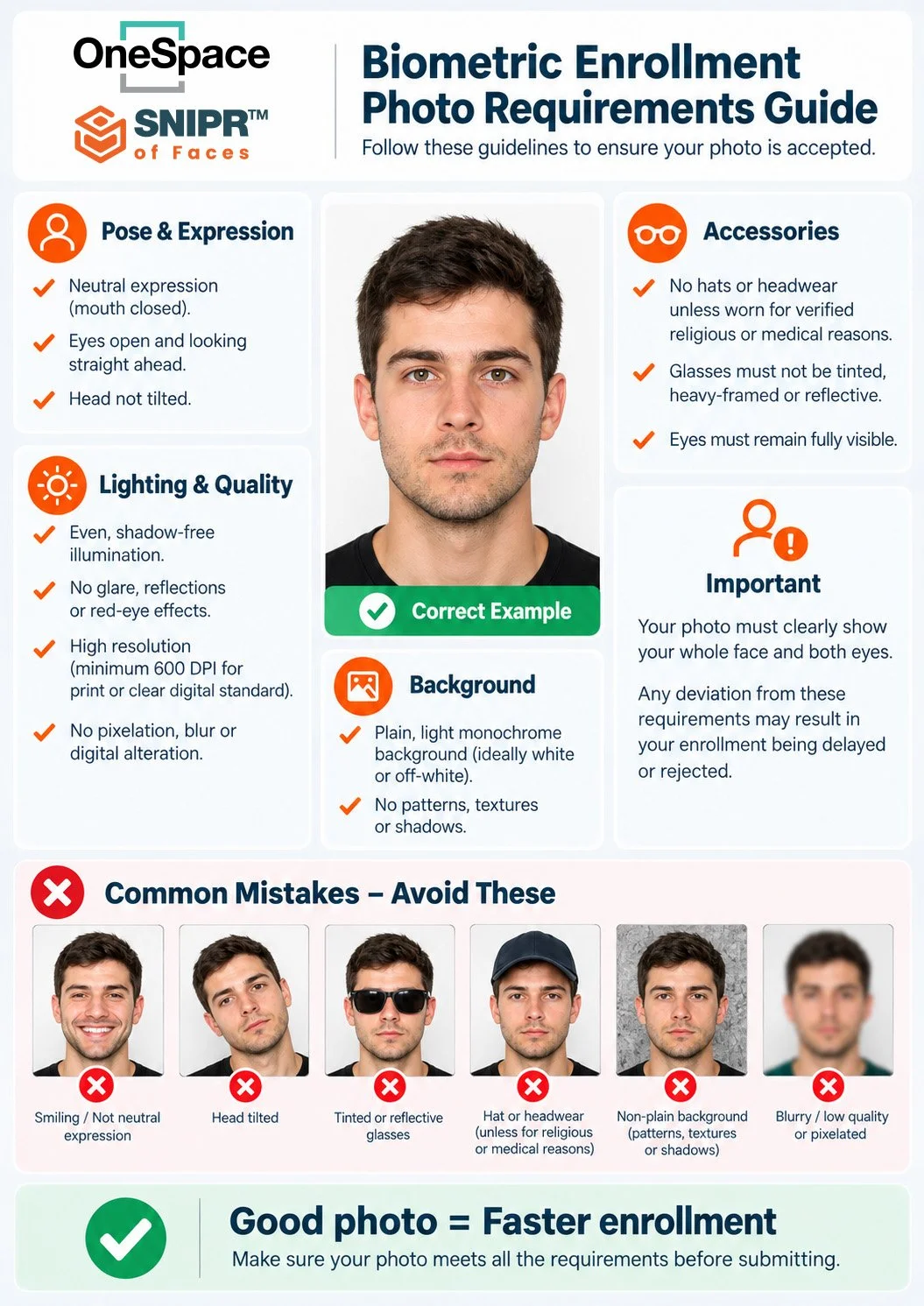
| Do | Do not |
|---|---|
| Use a close-up photo, from the shoulders up | Use a photo from far away or of a group |
| Look straight at the camera | Tilt, turn or lift the head, or look down |
| Keep a normal face (natural expression) | Wear a hat, sunglasses or other things on the face |
| Keep the face in the middle of the photo | Let hair cover the eyes or ears; heavy makeup |
| Save the photo as a .jpg file | Use other file types |
| What is happening? | Check this first |
|---|---|
| I cannot upload the photo | Is the photo a .jpg file? |
| I get no face alerts at all |
|
| Alerts work in the day but not at night | Do your alert times cover the night? Times past midnight need two rows. |
| The camera does not find the person | Is the photo clear, close-up and front-on? Was the person wearing a hat, cap, mask or sunglasses? |
| Search shows nothing |
|
| All face alerts stopped at once | Was there a power cut, or a change to your network or router? Check the Distribution Server. |
| I want to add a second person | Create a new hotlisting. Each hotlisting can only have one person. |